Open the document properties of a PDF you did not create. There is a reasonable chance you will learn the name of the person who wrote it, the organisation they work for, which software they used, what the file was originally called, and when they last edited it - none of which appears anywhere on the visible page.
Now consider that every PDF you have ever sent carries the same layer.
Most of the time this is harmless. Occasionally it is not: a job applicant whose CV names the template's original owner, a law firm whose filing reveals internal file paths, an anonymous submission signed by its author in the document info dictionary.
One file, six leaks
To see how much a single ordinary-looking PDF can carry, on 29 September 2026 we built one the way real documents end up: an offer letter whose author field was filled in from a laptop account, exported from Word, with a reviewer's comment on it, a figure that had been changed from a draft and saved, and an internal note at the bottom that had been cropped off the page. Then we read it back with a PDF library, the way anyone receiving it could.
- Author fieldsarah.mitchell
- Creator and ProducerMicrosoft Word · Microsoft: Print To PDF
- XMP metadatadc:creator sarah.mitchell
- Review commentby sarah.mitchell: "Check the number with legal first"
- Earlier saved versionDraft offer: 85,000
- Outside the crop boxINTERNAL - do not send
Where the information lives
PDF metadata is not a single field. It is scattered across several places, which is why "I cleared the author field" usually is not enough.
The document information dictionary. The classic set, visible in nearly every viewer under File → Properties: Title, Author, Subject, Keywords, Creator, Producer, CreationDate, ModDate.
Two of those deserve attention. Creator records the application the content originated in - Microsoft Word, InDesign, LaTeX. Producer records what converted it to PDF - Distiller, a print driver, a library. Together they fingerprint your toolchain fairly precisely, often down to version numbers.
Author is the one that catches people, because it is usually populated automatically from your operating system account name. If your laptop user is sarah.mitchell, that is what ships.
XMP packets. A parallel metadata system, stored as embedded XML. XMP frequently duplicates the info dictionary, which is why clearing one and not the other leaves the data intact. It can also carry considerably more: edit history, document IDs that persist across saves, rights statements, and application-specific blocks.
Form field values. A PDF form remembers what was typed into it. If a form was filled, cleared visually, and reused, the underlying field values can survive.
Annotations and comments. Review comments carry author names and timestamps. Deleting the visible markup does not always remove the underlying annotation objects.
Incremental update history. This is the least understood and the most dangerous. The PDF format supports saving changes by appending to the file rather than rewriting it. Each save adds a new section while leaving the previous state in place. A document edited many times can contain several earlier versions, recoverable by anyone who parses the file structure rather than just viewing the current page.
In our test file, the offer was changed from 85,000 to 92,000 with an incremental save. Every viewer shows 92,000. But the file contains two %%EOF markers, and cutting it at the first one gave a complete, valid PDF saying "Draft offer: 85,000".
If a file has been through many rounds of edits and is much larger than its content justifies, appended history is a likely reason.
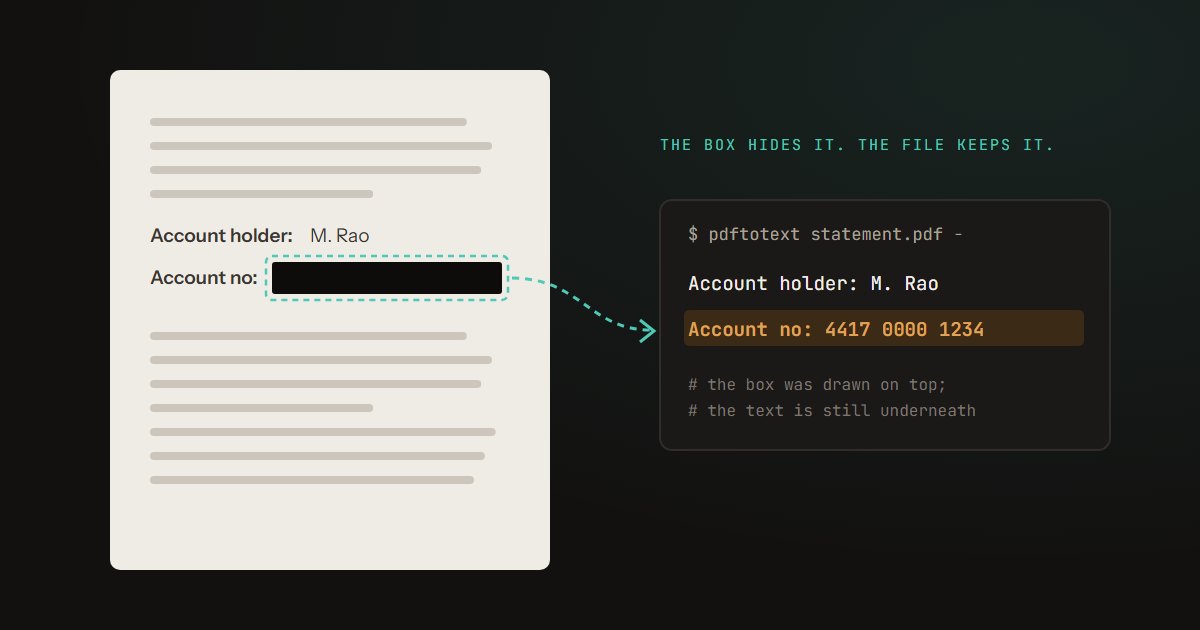
Content outside the crop box. A PDF page has a MediaBox (the full page) and often a CropBox (the visible region). Cropping a PDF usually just shrinks the CropBox. The content outside it is still in the file - hidden, not deleted. In our test, the cropped-off note did not show up when we copied the page's text, which makes it easy to believe it is gone. Setting the crop box back to the full page brought "INTERNAL - do not send" straight back.
This is how cropping works in most tools, including our own Crop PDF by default. If you are cropping for tidiness, it is fine. If you are cropping to remove something, turn on its "Also delete what is outside the crop" option, which saves each cropped page as an image of just the visible part, or use Redact PDF. We wrote about why covering things up fails separately.
Embedded fonts and attachments. Fonts can reveal what was installed on the authoring machine. PDFs can also carry arbitrary file attachments, which some workflows add without the author noticing.
How to see a PDF's metadata
Before worrying about a document, find out what is actually in it.
Any PDF viewer. File → Properties, or Ctrl+D in Acrobat. To check without installing anything or uploading the file, open it in View PDF and choose Document Properties from the More menu. Shows the info dictionary. Fast, and catches the most common exposure.
ExifTool. The thorough option. exiftool document.pdf dumps every metadata field it can find, including XMP blocks a viewer will not show you.
A text editor. Crude but revealing. Open a PDF in a plain text editor and much of it is binary noise, but metadata strings are often stored as readable text. Searching for your own name is a quick sanity check. This is also how you spot appended revisions - multiple %%EOF markers mean the file has been saved incrementally more than once.
What our own tools removed
We then ran the same file through four of our tools. None of them is a metadata cleaner, and the results show it: each kind of tool removes some things and keeps others.
| In the original | Rotate, Watermark edit the file | Merge builds a new file | Redact page becomes an image |
|---|---|---|---|
| Author field | Still there | Gone | Still there |
| XMP metadata | Still there | Gone | Still there |
| Comment and its author | Still there | Still there | Gone |
| Earlier saved version | Gone | Gone | Gone |
| Text outside the crop box | Still there | Still there | Gone |
- Tools that edit your file - Rotate, Watermark, Add Page Numbers, Sign and the rest - keep the document's own information, including the author, because keeping everything is what they are for. They do replace the Producer field, which then names the PDF library we use.
- Merge builds a new file, so the author field and XMP were gone. The comment, and the name on it, came across with the page.
- Redact turns a page into a picture, so the comment, the draft and the cropped-off note on that page went with it. The author field and XMP stayed, because they belong to the document, not the page.
One result was a problem in our own tools, and we fixed it before publishing this. Opening a file and saving it again does get rid of the list of saves - the output has a single %%EOF - but our tools that edit a file in place were still writing the old draft's text back into it, unused but readable: the rotated file still contained "Draft offer: 85,000". They now leave out anything nothing in the document refers to, and the draft is gone from the output of all four.
Removing metadata, and shipping less of it
Check before sending anything outside your organisation. Ten seconds in document properties. Make it a habit for anything going to a client, a court, a portal, or the public.
Fix the source, not just the output. Author metadata usually comes from your account name in Word, your OS user, or your PDF software's preferences. Setting it correctly once stops the leak at the origin rather than requiring cleanup on every file.
Save-as rather than save, for documents with long edit histories. A fresh save typically rewrites the file rather than appending, discarding accumulated revision history. This is also why files often shrink dramatically after a save-as. Check the result, though: as our own tools showed, a program can rewrite a file and still carry old content across.
Flatten when the structure is not needed. Converting pages to images and building a new PDF from them - via PDF to JPG and then JPG to PDF - leaves behind comments, form values and hidden content, because none of it survives becoming pixels, and the old document's properties belong to the old file. Turning pages into images inside the same file is not enough on its own: our Redact tool does that, and the author field was still there afterwards. The cost of flattening is real: you lose selectable text, searchability, accessibility for screen readers, and file size goes up. It is a blunt instrument, appropriate when you genuinely need to be certain nothing structural survives.
Photos have their own version of this. A phone photo records where and when it was taken, and on which camera. Compress JPG saves photos without any of it; we checked its output for an EXIF block and found none.
For anonymity, assume the file is not anonymous. If a document must not be traceable to you, metadata stripping is necessary but not sufficient. Writing style, fonts available on your system, timestamps, and the toolchain fingerprint all narrow the field. Treat metadata removal as one step, not the whole job.
The honest summary
Most PDF metadata is mundane and nobody will ever look at it. But it is created automatically, it travels invisibly, and the cost of checking is a few seconds. The documents where it matters - filings, submissions, anything anonymous, anything leaving your organisation - are usually obvious in advance. Check those.
How the test was built
Document. A one-page offer letter made with pdf-lib: the author set to "sarah.mitchell", Creator "Microsoft Word" and Producer "Microsoft: Print To PDF", the same name in an XMP metadata packet, a review comment signed with it, and a note at the bottom of the page outside the crop box. The offer line was then changed from "Draft offer: 85,000" to "Final offer: 92,000" by appending an incremental update to the end of the file, the way many editors save.
Tools. Piqav's Rotate, Watermark, Merge and Redact PDF each processed the file with their own code, unchanged, in Microsoft Edge on a development build of this site.
Checks. Each file was read with pdf-lib for the document properties, XMP and comments; every string and decompressed stream in it was searched for the author's name and the draft's text; the file was cut at its first %%EOF and opened to look for an earlier version; and the crop box was reset to the full page and the text extracted with pdf.js. The leaky test file and every check on it are kept, so each tool can be re-checked when it changes.
Limitations. One hand-made file rather than documents exported by Word itself, and four of our tools rather than all of them; the others that edit a file in place save it the same way as Rotate and Watermark. Timestamps, embedded fonts and attachments were not tested. The results describe our tools as they stood on 29 September 2026.