Compress PNG Online Free
Reduce PNG file size online, free, while keeping the transparent background intact.
Smaller PNGs, transparency kept
Reduce PNG size in three steps: add one PNG or a batch, pick a quality, and click compress. The result is still a PNG, the same width and height, with its transparent background - unless you choose a smaller size under Resize, or WebP, which keeps the transparency in a smaller file. The compression code is fetched from a public CDN once; your images are never uploaded. We recorded what the page downloads and sends while it compressed a real PNG. To make one document out of a set of screenshots, PNG to PDF puts each on its own page.
Screenshots and photos behave differently
We compressed two PNGs at every preset and at the bottom of the slider:
| Setting | Screenshot, 1600 × 1000 (165 KB) | Photo saved as PNG, 3000 × 2000 (12.1 MB) |
|---|---|---|
| Best Quality (85) | 44 KB (−73%) | 6.4 MB (−46%) |
| Recommended (70) | 44 KB (−73%) | 6.1 MB (−49%) |
| Smallest File (30) | 44 KB (−73%) | 2.8 MB (−77%) |
| Slider at 10 | 44 KB (−73%) | 2.0 MB (−83%) |
The screenshot used 24 colours, and the compressed file still had exactly those 24 - it lost nothing and came out the same at every setting, because it was only stored more efficiently. The photo had about 274,000 distinct colours; Best Quality cut them to about 3,500 and the slider at 10 to 81. That is where the size comes from, and it is what can show as banding in skies and gradients. Both images kept their dimensions at every setting.
Which to use for a photo
Even at the bottom of the slider, the photo PNG was 2.0 MB. The same photo as a JPG was 644 KB at Recommended quality with no banding. Unless you need transparency, a photo belongs in JPG: Compress JPG will get it far smaller. Keep PNG for screenshots, logos, diagrams and anything with a transparent background - the images where it loses nothing.
Transparency
A logo, icon or cut-out with a transparent background keeps it; we checked the compressed file, not just the preview. It does not gain a white box when placed on a coloured page.
The hard part of transparency is not the empty background but the edges. The anti-aliased rim of a shape and the soft fade of a drop shadow are made of partly transparent pixels, and a careless compressor turns them into a jagged or grey fringe. We tested a 1200 × 1200 round badge with a gradient fill and a drop shadow - 690,436 fully transparent pixels and 142,768 partly transparent ones. At every setting, all 690,436 stayed fully transparent, and at least 142,672 of the partly transparent ones stayed partly transparent, which is 99.9%.
Logos and charts: where the slider starts to matter
Between a flat screenshot and a photograph sit the images most people actually compress - a logo with a gradient, a chart with a shaded area. They have a few thousand colours, not dozens or hundreds of thousands, and the setting does change them:
| Setting | Badge with gradient and shadow (685 KB, 3,199 colours) | Line chart with shaded area (117 KB, 1,586 colours) |
|---|---|---|
| Best Quality (85) | 249 KB, ~1,570 colours | 36 KB, ~780 colours |
| Recommended (70) | 249 KB, ~1,560 colours | 36 KB, ~780 colours |
| Smallest File (30) | 103 KB, 242 colours | 16 KB, 242 colours |
| Slider at 10 | 52 KB, 81 colours | 14 KB, 81 colours |
Recommended already takes about two thirds off both. Looking at the results, even at 10, with only 81 colours left, the chart and the badge's gradient still looked smooth to us at normal viewing size; the one change we could see was a slightly lighter drop shadow. So for a website icon or a chart in a slide, Smallest File is worth trying - then zoom in on the gradients before you use it, since that is where a reduced palette shows first.
How to compress a PNG
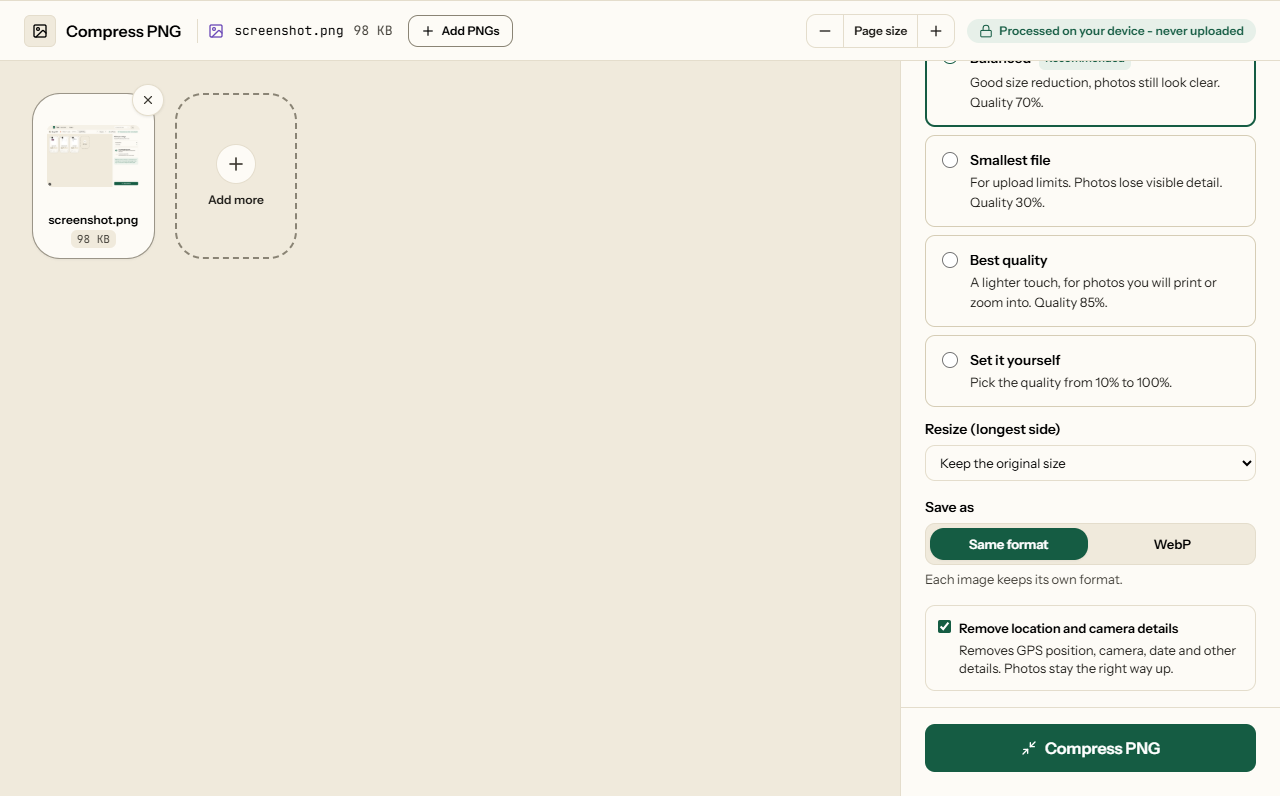
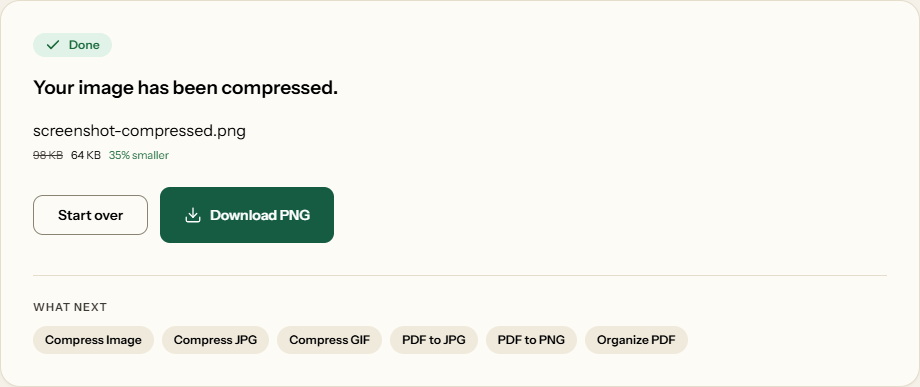
What Compress PNG looks like
Two screens from the working tool, captured on 23 October 2026 with a 98 KB screenshot in it.
Frequently asked questions
Will my image lose its transparent background?
No. We checked: a PNG with a transparent background comes back with its transparency intact, so a logo still sits cleanly on any colour.
Is PNG compression lossless?
It depends on the image. A screenshot or logo with a limited set of colours loses nothing - in our test every colour was kept and only the file got smaller. A photograph saved as PNG has hundreds of thousands of colours, and to shrink it the tool reduces them to a few thousand or fewer, which can show as banding in smooth gradients.
Why did my screenshot come out the same size at every setting?
Because nothing had to be thrown away. A screenshot with few colours is simply stored more efficiently - ours went from 165 KB to 44 KB at every preset - so the quality setting has nothing to change. The setting only matters for images with many colours, such as photos.
Should I keep a photo as PNG or save it as JPG?
As JPG, unless it needs a transparent background. In our test a photo saved as PNG was still 2.0 MB at the lowest setting, while the same photo as a JPG was 644 KB at Recommended quality with no banding. Keep PNG for screenshots, logos and diagrams, and send photos through Compress JPG.
Will soft edges and drop shadows turn jagged?
No. We tested a round badge with a gradient fill and a drop shadow, which has 142,768 partly transparent pixels along its edges. At every setting, 99.9% of them stayed partly transparent, so the edges stay smooth instead of turning jagged or grey.