Crop PDF Online Free
Trim white margins automatically, or draw a box and apply it to one page, a range or the whole document.
Trim margins, borders and blank space
Cropping a PDF changes the part of each page a viewer shows; it does not delete what is outside the box. Click Trim white margins on every page, or drag a box around what you want to keep, choose which pages it applies to, and click Crop PDF. Nothing is redrawn, so text stays selectable and quality is unchanged. If you are cropping to get rid of something, one switch removes the trimmed part from the file. It all runs in your browser.
Trim white margins automatically
The tool draws each page, finds everything printed on it and puts a box around that, with about 3 mm to spare, as a separate crop for every page. The paper colour is taken from the page's corners, so a grey or cream scan is trimmed to its print rather than to its edge, and a few specks of dust do not hold a margin open. Blank pages are left alone. The boxes are a proposal: look at each page and adjust before you crop.
We tried it on 10 October 2026. On our 6-page test report it set a box on all six pages in under half a second, and when we checked every piece of text in the cropped file, none of the 54 lay outside its page's box. On a simulated office scan - grey paper, grain and a slight skew - it trimmed the page to its paragraph.
Four ways to apply a crop
| All Pages | One box, every page. Right for a document whose margins are the same throughout. |
| Current Page Only | Just the page you are looking at. |
| Custom Page Range | One box on the pages you list, such as 1-3, 5, 8. |
| Custom per Page | A different box on each page, for scans where the text sits in a different place on every sheet. Trim white margins fills this in for you. |
For a crop you need to repeat exactly, type Left, Top, Width and Height in percent, millimetres or inches, measured from the page's top-left corner. Pages that have been turned are handled: the box you draw is the box you get, whichever way up the page is stored.
Cropping hides; it does not delete - unless you ask
A PDF page has two sizes: the full sheet, and the part a viewer shows. Cropping changes only the second. That is why it costs nothing in quality - no text is redrawn, no image is resampled - and also why the trimmed-off part is still in the file. We cropped a report to its bottom half and then widened the crop again: the top half, heading and all, came straight back.
For tidying margins that does not matter. If you are cropping to get rid of something - a name in a header, an account number in a corner - turn on Also delete what is outside the crop. Each cropped page is then saved as an image of just its visible area, so the trimmed part is gone; text on those pages stops being selectable. We repeated the test with it on, and nothing came back. Cropped-off text is one of six things we found an ordinary PDF can carry without showing them, in what your PDFs leak. To remove something in the middle of a page instead, use Redact PDF.
What it does to the file size
Cropping on its own does not make a PDF smaller, because the hidden part is kept: our 6-page report went in at 56.6 KB and came out at 56.7 KB with every page trimmed. The delete option does the opposite. Pages saved as images are larger than pages of text, and the same report came out at 1.3 MB. For a file that has to be small, crop without deleting, or run the result through Compress PDF.
What else stays the same
Without the delete option, cropping changes nothing but the visible area: bookmarks, links, accessibility tags, attachments and filled-in form fields all came through our test intact (the full results). A form field that ends up outside the crop is still in the file, just out of view.
How to crop a PDF
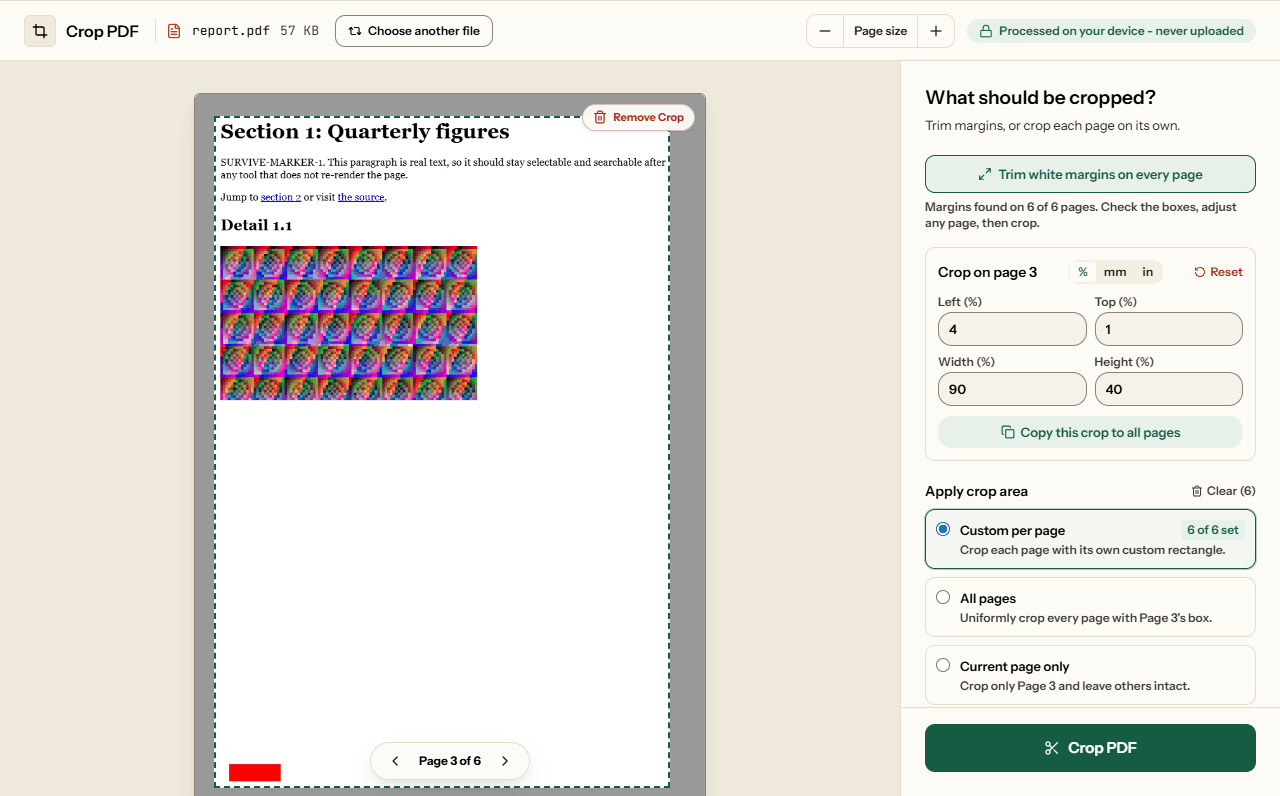
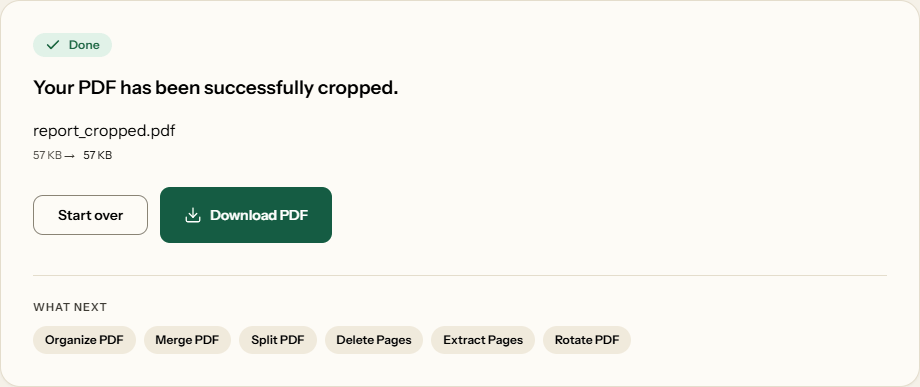
What Crop PDF looks like
Two screens from the working tool, captured on 16 October 2026 with a 6-page, 57 KB report in it.
Frequently asked questions
Is the part I cropped off really gone?
Not unless you ask. Cropping hides what is outside the box, and anyone can widen the crop again to see it - we tested exactly that. Turn on Also delete what is outside the crop and the cropped pages are saved as images of just the visible area, so the trimmed part is removed from the file.
Can it trim white margins automatically?
Yes. Click Trim white margins on every page and each page gets a box around everything printed on it, with a small margin left. On our 6-page test report it took under half a second, and none of the 54 pieces of text ended up outside a box. Check the boxes and adjust any page before you crop.
Does cropping make the PDF smaller?
No. The hidden part stays in the file, so our cropped report came out at the size it went in, 56.6 KB against 56.7 KB. With the delete option it grows instead - to 1.3 MB in the same test - because each cropped page becomes an image.
Can I give each page a different crop?
Yes. Choose Custom per Page and draw a box on each page, which suits a scanned book whose margins drift. Trim white margins does this for you, one box per page. Copy this crop to all pages starts every page from the same box.
Can I enter exact sizes in millimetres or inches?
Yes. Switch the units to mm or in and type Left, Top, Width and Height, measured from the page's top-left corner; the panel shows the page's own size. To trim 10 mm from every edge of an A4 page, set Left and Top to 10, Width to 190 and Height to 277.
Do links, bookmarks and form fields survive?
Yes, without the delete option. Our test report's bookmarks, links, accessibility tags, attachment and filled-in form fields all came through. A form field outside the crop is still in the file, just out of view.