Merge PDF Online Free
Combine PDFs - and JPG, PNG or WebP images - into one file in the order you set. Each page is copied as it is, on your device.
Merge PDF files without uploading them
To merge PDF files online for free, add them to Piqav Merge PDF, drag them into order, and click Merge. Piqav is a free PDF merger - also called a PDF combiner - that runs in your web browser, so the files are combined on your own device and never uploaded. Merging copies each page as it is: text stays selectable, images keep their quality, and bookmarks and links still work. You can take only some pages from each file, and every file gets its own bookmark. A digitally signed PDF loses its valid signature in any merge, so Piqav keeps the signed original attached inside the merged file, where its signature still verifies.
| Input | PDF files, and JPG, PNG or WebP images, mixed in any order. Each image becomes one page. A password-protected PDF is accepted once you type its password. |
|---|---|
| Output | One PDF, in the order you set. Pages are copied unchanged; nothing is re-compressed unless you turn on Compress merged file. |
| Size | The inputs added together, or a few percent less. Never more in our tests. |
| Speed | 0.06 s for 5 files; 3.0-3.4 s for 101 files and 954 pages, on a mid-range laptop. |
| Limits | No fixed file count or size. Memory is the limit: about five and a half times the input size. |
| Does not | Accept Word files or HEIC photos, keep accessibility tags, attachments, page labels or document titles, or keep a digital signature valid. It needs a connection when you first add files, because that is when the merge screen loads. |
How to combine PDF files: merge PDFs in four steps
1-3, 5 on a card to use only those pages from that file.What you can control: order, page ranges, bookmarks
Order
Drag the file cards into sequence. The merged PDF follows it exactly, and within each file the pages keep their own order.
Page ranges per file
Type 1-3, 5 against a file to take only those pages from it - the summary of a long report, not the whole thing.
A bookmark per file
On by default: each file becomes one bookmark named after it, so you can jump to where it starts. Turn off Auto-generate bookmarks to keep each file's own bookmarks at the top level instead.
What a merge keeps and what it drops
A PDF is a set of pages plus a layer above them that holds bookmarks, the targets of links between pages, accessibility tags and attachments. Merging has to build a new document, so that layer is rebuilt for what can be carried across. Tested on a tagged, bookmarked report and a filled-in form:
| Part of the file | After merging |
|---|---|
| Text | Kept, still selectable and searchable |
| Images and scans | Kept at their original quality |
| Web links and links between pages | Kept, so a clickable table of contents still works |
| Filled-in form fields | Kept and still fillable. Two copies of the same form get their fields renamed, so they do not fill each other in |
| Comments | Kept |
| Page sizes and orientation | Kept; an A4 letter and a landscape spreadsheet stay as they are |
| Bookmarks | Kept, folded under one bookmark named after each file |
| Digital signatures | No longer valid; the stamp stays and the signed original is attached (see below) |
| Accessibility tags, attachments, page labels, titles and authors | Dropped |
If a document's tags or attachments matter, keep the original alongside the merged copy. The method and the full results for every tool are in what survives each PDF tool.
Bookmarks missing after a merge?
A merge builds a new document and copies the pages into it. Bookmarks do not live on the pages: they sit in the document's own outline, which points at pages by position. A merger that copies only the pages leaves that outline behind, so the merged file opens with an empty bookmarks panel even though every page is there.
Piqav rebuilds the outline for the new file. With Auto-generate bookmarks on, each file gets one bookmark named after it, and that file's own bookmarks sit one level below, still opening the right pages. Turn it off and the files' own bookmarks are listed at the top level, in merge order. In our test on a tagged report with twelve bookmarks, every bookmark came through and still opened its page.
If a merged file from another tool has already lost its bookmarks, they cannot be recovered from that file. Merge the originals again here.
Merging digitally signed PDFs (DSC)
Why every merge breaks a digital signature
A digital signature, including the digital signature certificate (DSC) used for company and tax filings in India, is a seal over the exact bytes of the file it was applied to. A merge writes a new file, so the seal no longer matches, whichever tool does the merging. Before we changed how Piqav handles this, merging a signed contract as it was gave a file that still showed its "Digitally signed by" stamp while the signature failed verification - a document that looks signed and is not.
What Piqav does instead
The stamp stays on the page as part of what you see, and the signature field that would fail is removed. The original signed PDF is attached inside the merged file, unchanged. We tested three merges on 30 September 2026 - a signed contract with an unsigned annex, the contract on its own, and two files signed by two different people. In all three, every attached original was identical to the input byte for byte, and its signature verified as valid. Open the attachments panel (the paperclip in Adobe Acrobat Reader) to reach it. Turning on Compress merged file removes the attachment, and the screen says so as soon as you do.
If the signature has to stay valid
Send the signed PDF as a separate file next to the merged one, or merge first and have the combined document signed again with the certificate. Drawing a signature on the page is not the same thing; electronic and digital signatures explains the difference and which one a filing needs.
How fast, and where it stops
We timed about 30 merges of real documents on a mid-range laptop. Each row is the median of three runs.
| Files | Pages | Total size | Merge time |
|---|---|---|---|
| 5 | 16 | 3.3 MB | 0.06 s |
| 20 | 86 | 17.9 MB | 0.37 s |
| 80 | 417 | 75.5 MB | 1.6 s |
| 20 large scans | 373 | 332 MB | 1.5 s |
| 101 | 954 | 401.6 MB | 3.0-3.4 s |
Time is not the limit; memory is. The 400 MB merge used 2.2 GB of memory above what the browser was already using - about five and a half times the input - because the browser holds every file, the merged document and the saved result at once. On a laptop with 8-16 GB that is fine. On a phone or a 4 GB Chromebook with many tabs open, a merge that size is what fails, and it fails as a crashed tab rather than an error. For very large merges, close other tabs first or merge in two halves. The full numbers are in our merge benchmark.
How big the merged file is
We merged eight sets of test documents on 8 October 2026 and compared the result with the inputs added together. None came out bigger.
| What was merged | Inputs added together | Merged file | Difference |
|---|---|---|---|
| Phone scan, bank statement and a scanned receipt | 1.49 MB | 1.49 MB | -0.09% |
| Certificate, 4-page report and a 10-page scan | 12.08 MB | 12.08 MB | -0.01% |
| Two photo-heavy documents | 11.24 MB | 11.23 MB | -0.04% |
| A tagged report and a Word export | 117 KB | 111 KB | -5.3% |
| A report and a filled-in form | 65 KB | 60 KB | -7.5% |
| All 17 test documents, 30 MB | 30.73 MB | 30.71 MB | -0.08% |
Files made of scans and photos come out within a tenth of a percent of the total, because the images are copied as they are. Small text documents come out a few percent lighter, because the tags, attachments and titles a merge drops are a bigger share of a small file. Neither is compression: if the merged file has to fit an upload limit, it needs Compress PDF.
Check for yourself that nothing is uploaded
You do not have to take our word for it. It takes about a minute in Chrome, Edge or Firefox:
- Open this page and press
F12(or right-click and choose Inspect), then open the Network tab. - Add your PDFs and click Merge.
- Look at the requests that appear. You will see the page fetch its own code and the PDF renderer, and, on most visits, the ad scripts load. Click any request and open its Payload (or Request) tab: none of them carries your file.
We ran the same check with a script on 8 October 2026, adding a 3.3 MB and a 0.7 MB file and recording every request from that moment. The page made 17 requests to five addresses - its own code, the PDF renderer and Google's ad scripts - and every one was a plain fetch that sent no data at all. The same test for seven other tools is in why browser-based PDF tools are safer.
Before you merge
- Merge first, then compress once. If the merged file has to fit an upload limit - an application portal that takes one PDF under 2 MB, say - compress the merged result rather than compressing each file and merging.
- Compressing changes what the file is. Our compressor turns each page into an image. That is what gets a scan down to a portal's limit, but text stops being selectable and links and form fields go. Compress the copy you upload, not the one you keep.
- Mixed page sizes stay mixed. An A4 letter, a landscape spreadsheet and a small receipt keep their own sizes; nothing is scaled to match. Rotate any sideways scans before merging, or afterwards in Rotate PDF.
- Password files: a file that asks for a password to open is unlocked on your device when you enter it. A file with only an owner password - it opens freely but restricts printing or copying - is unlocked automatically; the merged file does not keep that restriction.
What Merge PDF looks like
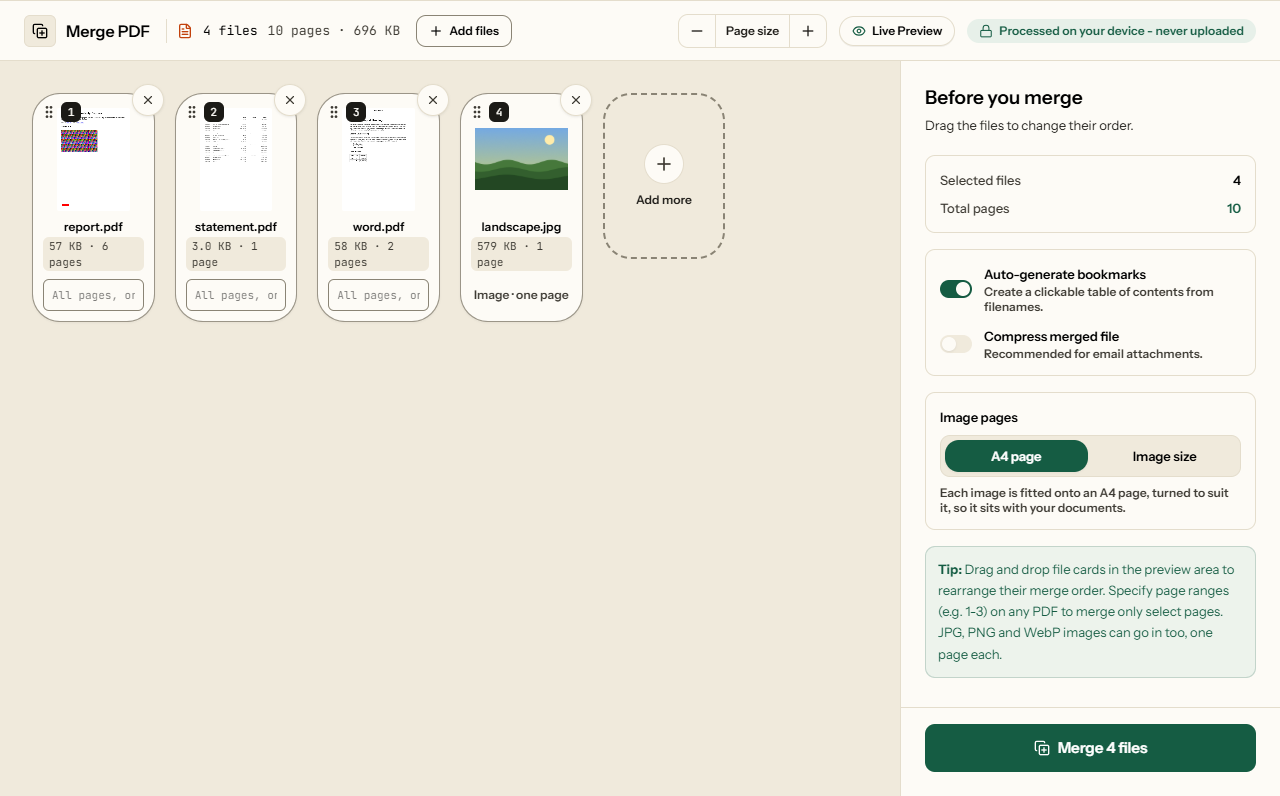
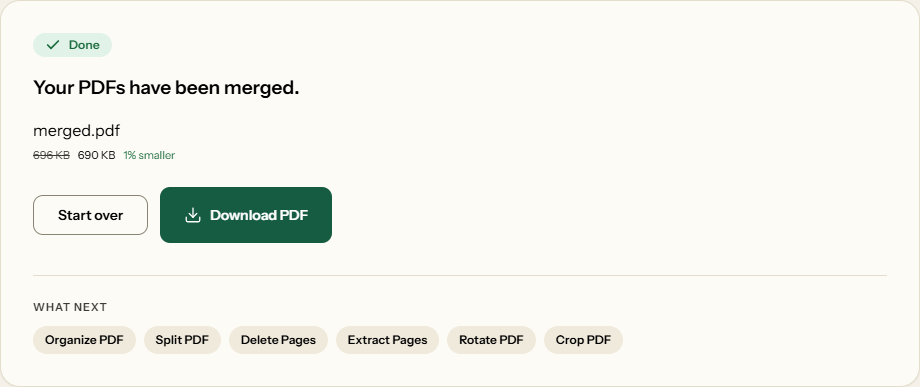
Two screens from the working tool, captured on 23 October 2026 with three PDFs and one JPG photo in it: 10 pages and 696 KB between them.
Frequently asked questions
Does merging reduce the quality of my PDFs?
No. Merging copies each page into the new file without re-rendering or re-compressing it, so text stays selectable and images keep their original resolution. Quality changes only if you also turn on Compress merged file.
Will the merged PDF keep bookmarks and links?
Yes. With Auto-generate bookmarks on, which is the default, each file gets one bookmark named after it, with its own bookmarks folded underneath; turn it off and the files' own bookmarks are listed at the top level. Links between pages and web links keep working, and filled-in form fields stay fillable. Accessibility tags, attachments, page labels and document titles are not carried across, so keep the originals if those matter.
My merged PDF is in the wrong order. How do I fix it?
The merged file follows the cards from first to last. On a computer, drag the card to its place and merge again; on a phone, add the files in the order you want them. To move single pages after merging, open the merged file in Organize PDF.
What happens to pages of different sizes?
They stay as they are. An A4 letter, a landscape spreadsheet and a small receipt keep their own sizes and orientation in the merged file; nothing is scaled to match.
Can I merge a digitally signed PDF without losing the signature?
No tool can keep the signature valid, because it protects the exact bytes of the original file. Piqav keeps the visible signature stamp on the page and attaches the untouched signed PDF inside the merged file, where its signature still verifies. If the combined document must be signed, sign it again after merging.
Can I merge PDF and JPG files together?
Yes. Add JPG, PNG or WebP images alongside your PDFs and drag them into place; each image becomes one page. By default it is fitted onto an A4 page so it sits with your documents, or choose Image size for a page exactly the size of the picture. A JPG's own data is placed on the page without re-encoding, and phone photos come out the right way up. We tested a PDF, a sideways-stored phone photo, a transparent PNG and a WebP in one merge: five pages, the photo upright, one bookmark per file. For a PDF made only of photos, with margin and orientation choices, use JPG to PDF.
Is there a limit on how many files or how much I can merge?
There is no fixed limit. The real limit is your device's memory: in our tests a 402 MB merge of 101 files took about three seconds but used about 2.2 GB of memory. On a phone or a low-memory laptop, merge very large sets in two halves.
Why is my merged PDF so large?
Merging never makes files smaller in any way you would notice: in our tests the result was the inputs added together, or a few percent less. To fit an upload limit, merge first and then compress the merged file once. Compressing turns pages into images, so text is no longer selectable afterwards.
After Merging
Common next steps once your files are combined.