JPG to PDF Converter
Combine photos into one PDF, with control over page order, margins and orientation.
Photos into one PDF, the right way up
To turn photos or other images into a PDF, add your JPGs, drag them into order, choose a page size and margin, and click Convert to PDF. Each photo becomes a page. The photos stay on your device; nothing is uploaded.
The sideways-photo problem, fixed
A phone does not usually turn a portrait photo when it saves it. It stores the picture sideways and adds a note - the EXIF orientation tag - saying "show this turned 90 degrees". Your gallery, WhatsApp and the browser all obey the note, so you never see the sideways version. Plenty of PDF tools do not, which is why a document photographed page by page can come out with every page on its side.
This tool used to be one of them: the preview showed your photos correctly, and the PDF did not. Since 27 September it reads the tag and places each photo the way it was meant to be seen. We tested a photo with each of the eight orientations a camera can record, including the mirrored ones some front cameras use, and every PDF page matched what the browser showed, pixel for pixel. The photo is turned by the PDF itself, not re-saved, so it loses nothing.
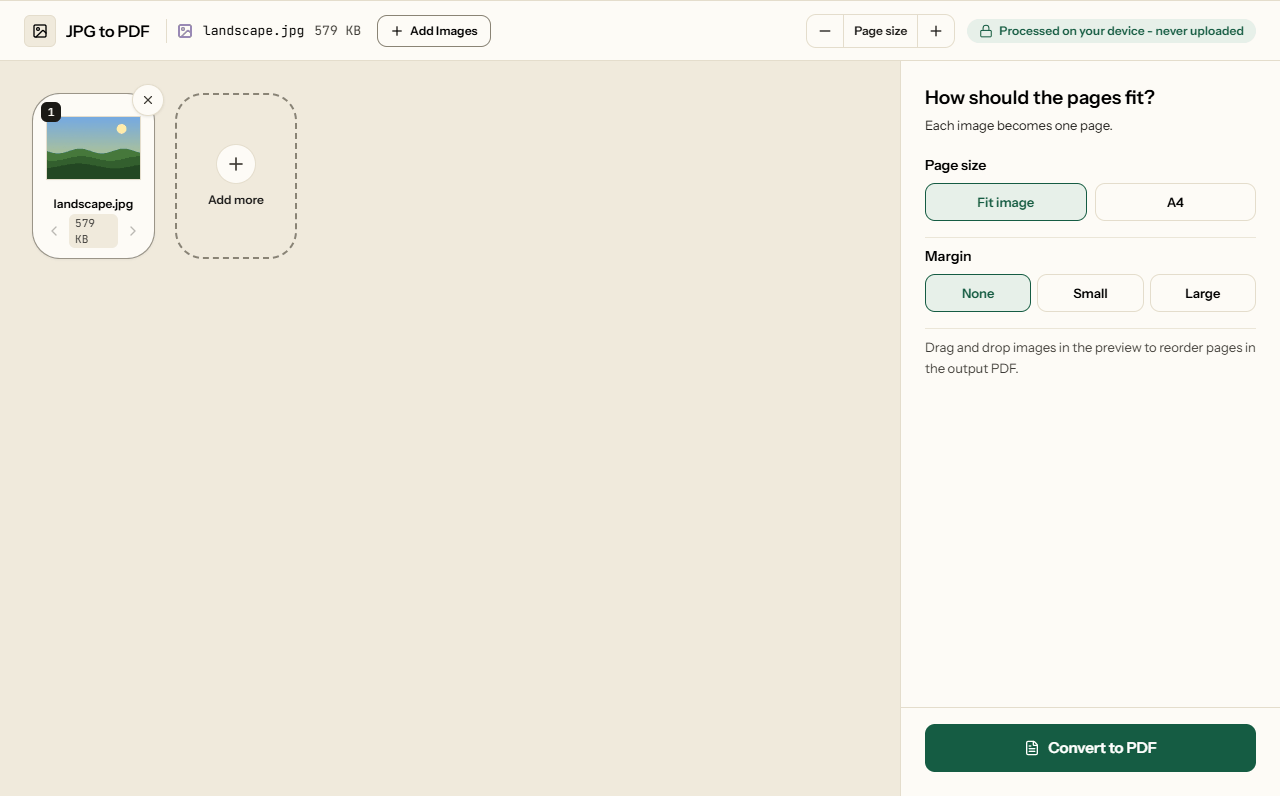
Page size: Fit Image or A4 Standard
| Fit Image | Each page is the photo's own shape and size, so nothing is cropped or padded. Pages can differ from each other. Best for viewing on a screen. |
| A4 Standard | Every page is A4, the photo scaled to fit inside the margin and centred. Auto turns each page to suit its photo; Portrait or Landscape forces one way. Best for printing, or for a form that asks for A4. |
With Fit Image, a 12-megapixel phone photo makes a very large page - about 142 by 107 cm, one point per pixel. It looks normal on screen and prints fine with "fit to page", but if the PDF is going to a printer or into a form, A4 Standard is the tidier choice.
Size and quality
JPGs go into the PDF exactly as they are, without being decoded and saved again, so quality is untouched and the PDF weighs about as much as the photos together. Ten 3 MB phone photos make a PDF of roughly 30 MB. If that is too big to send or upload, run the result through Compress PDF, or shrink the photos first with Compress JPG.
How to convert JPG to PDF
What JPG to PDF looks like
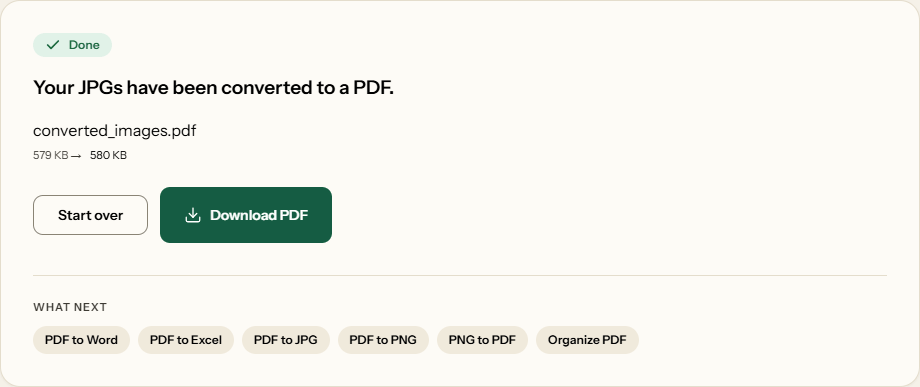
Two screens from the working tool, captured on 16 October 2026 with a 579 KB landscape photo in it.
Frequently asked questions
Why did my phone photo come out sideways in other tools?
Phones usually save a portrait photo sideways, with a note in the file (the EXIF orientation) telling viewers to turn it. Your gallery and browser follow the note; many PDF tools ignore it. This one reads it, so every photo comes out the way you took it - we checked all eight orientations a camera can record.
Will the PDF be smaller than my photos?
No - about the same, because each JPG goes in exactly as it is, with no second round of compression and no loss of quality. Ten 3 MB phone photos make a PDF of roughly 30 MB. To get under an upload limit, run it through Compress PDF afterwards.
Can I make every page A4?
Yes. Choose A4 Standard: each photo is scaled to fit inside the margin and centred, never stretched. Auto turns each page to suit its photo, while Portrait or Landscape forces one way. Margins can be none, small or large.
Why is my PDF page so big on screen?
With Fit Image a page is one point per pixel, so a 12-megapixel photo makes a page about 142 by 107 cm. It looks normal on screen and prints with "fit to page", but for a printer or a form, choose A4 Standard.
Can I combine many photos, and in what order?
Yes. Add as many as you like; each becomes a page in the order shown in the preview, which starts as the order you added them. Drag any photo to move it before converting.
Will the PDF distort my photos?
No. Photos are never stretched: with Fit Image each page is exactly the photo's shape, and with A4 Standard the photo is scaled down to fit the page and centred, keeping its proportions. A small photo is not blown up.
Can I add PNG screenshots to the same PDF?
Not in this tool, which takes JPG photos only. Make a second PDF from the screenshots with PNG to PDF, and Merge PDF will put the two together in whatever order you choose.