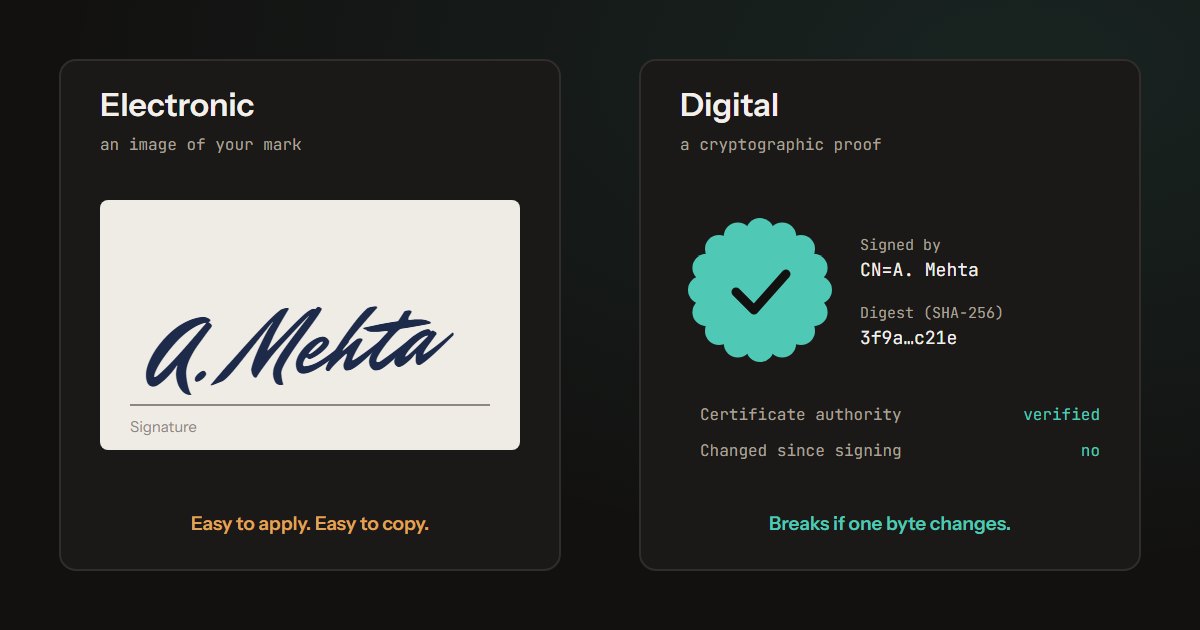
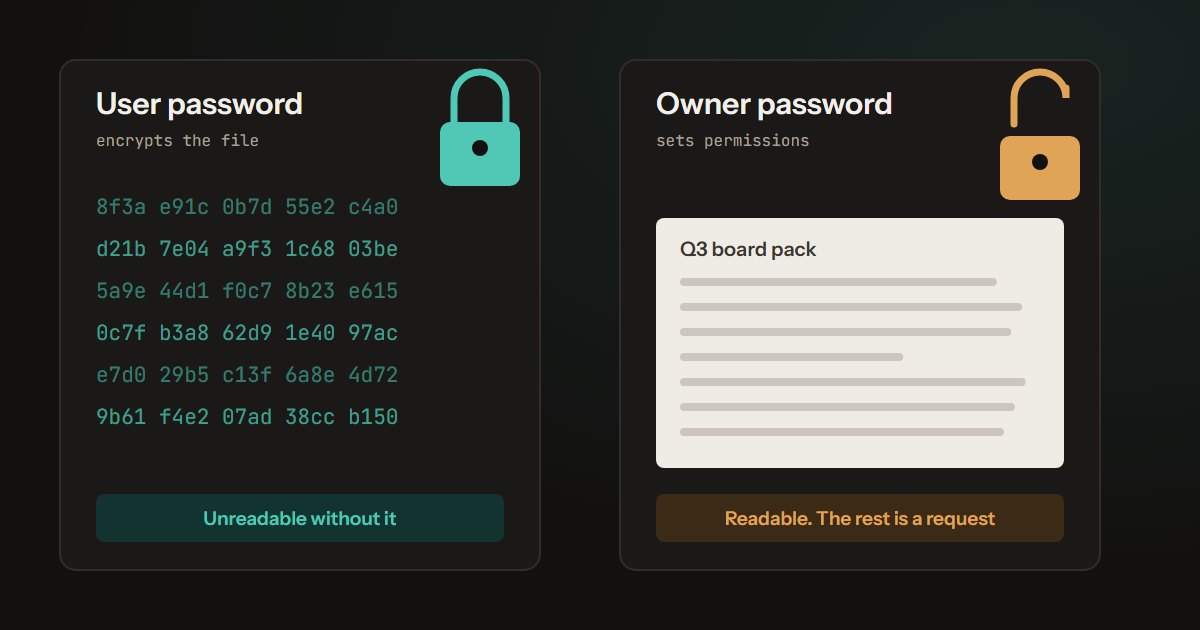
In January 2019, lawyers for Paul Manafort filed a court document with portions blacked out. Within hours, reporters had read the blacked-out passages (Columbia Journalism Review covered how). Nobody broke any encryption. They selected the text under the black boxes, copied it, and pasted it somewhere else.
This is not a rare mistake made by careless people. It has happened to government agencies, law firms, intelligence services, and Fortune 500 companies. The reason is that PDF redaction fails in a way that is invisible to the person doing the redacting: the document looks correct on screen, and the failure only surfaces when someone else opens it.
We hid the same number five ways
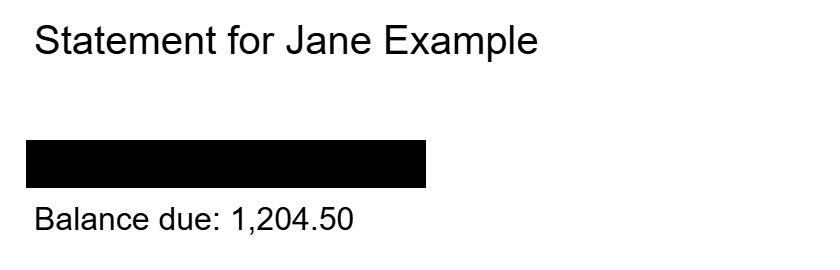
On 29 September 2026 we made a one-page statement with an account number on it, 4471-2298, and hid the number five different ways: three the way common editors do it, and two with our own Redact PDF tool. Then we did what anyone receiving the file could do - selected all the text, copied it out, and looked for the number.
| How the number was hidden | Copy-paste returns 4471-2298 | Rest of page selectable | File size (bytes) |
|---|---|---|---|
| Black box drawn on the page A shape or "black highlight" tool | Yes - leaked | Yes | 1,084 |
| Black box as an annotation A comment or markup tool | Yes - leaked | Yes | 1,087 |
| Scan, number painted out With an OCR text layer behind it | Yes - leaked | Yes | 22,232 |
| Piqav Redact On the text page | No | No - page is now an image | 62,310 |
| Piqav Redact On the scan with OCR text | No | No - page is now an image | 56,173 |
Three of the five leaked the number in full, including the scan, where the number really had been painted out of the picture. None of the three looked any different from the two that worked.
A PDF is not a picture of a page
The root of the problem is a mental model mismatch. Most people picture a PDF the way they picture a photograph - a flat image where covering something with black paint destroys what was underneath.
A PDF is closer to a set of drawing instructions. A text-based PDF contains a content stream that says, in effect: set this font, move to these coordinates, draw the characters "Account No. 4471-2298". When you draw a rectangle on top, you have not edited that instruction. You have added a second instruction that says fill this area with black, and told the renderer to execute it afterwards.
Both instructions are still in the file. The viewer paints the text, then paints a black box over it. Your eyes see a black box. The text extraction layer, which does not care about painting order at all, sees the original string exactly as it always was.
Copy and paste reads the text layer. So does search. So does any script that opens the file programmatically.
- 1 draw text “Account No. 4471-2298”
- 2 fill black box over it
The four ways redactions leak
The copy-paste failure is the famous one, but it is not the only route.
Annotation-layer boxes
Most PDF viewers let you draw a filled rectangle as an annotation - a comment-layer object that sits above the page rather than inside it. In our test it leaked exactly like a drawn box: copy-paste returned the number. Annotations can also be deleted outright in another editor, which removes the box and reveals the page beneath it untouched, so a reader does not even need to copy text.
Vector graphics conversion
Converting a PDF to SVG or opening it in a vector illustration program separates every drawn object onto its own layer. The black rectangle becomes one object; the text becomes another. Hiding one reveals the other, which anyone who has used design software knows how to do.
Metadata and revision history
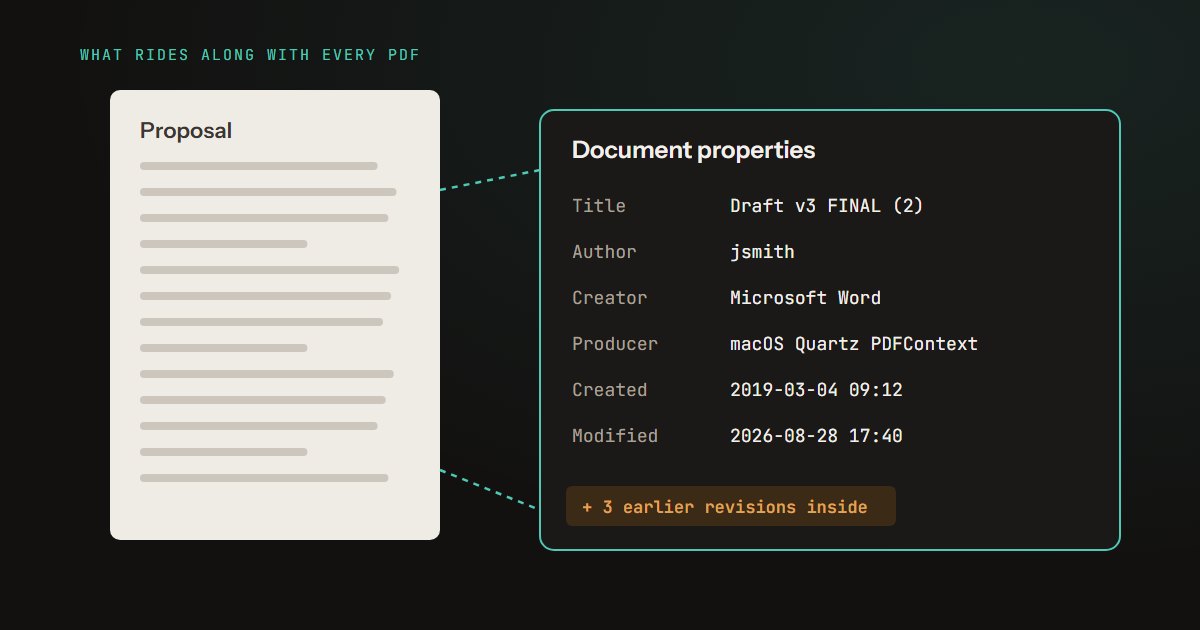
Even if the visible page is clean, the sensitive string may survive elsewhere in the file. Document properties, XMP packets, form field values, and the incremental-update history of a document that was edited repeatedly can all carry text that no longer appears on any page. We wrote about what PDFs leak in their metadata separately, because it is a large enough problem on its own.
The OCR text layer under a scan
This one catches people who did everything else right. A scanned document is an image, so painting over it genuinely does destroy the pixels. But if the file was run through OCR at any point - a scanner app, or a tool like OCR PDF - it carries an invisible text layer aligned behind the image. Flattening the picture does nothing to that layer. In our test the number had been painted out of the scan image itself, so no amount of zooming would show it, and copy-paste still returned "Account No. 4471-2298" from the text layer behind it.
Blacking out text so it is really gone: what proper redaction does
Real redaction is a destructive edit, not a cosmetic one. It has to remove the underlying content from the file, not obscure it. That means:
- Deleting the text objects themselves from the content stream, not covering them.
- Rasterising the affected region, so the area becomes pixels with no recoverable structure.
- Stripping the associated metadata - the document info dictionary, XMP, and any form fields holding the same value.
- Removing the OCR text layer for that region if one exists.
The signal that a tool is doing this properly is that redaction is irreversible and the file size changes. In our test the drawn box added almost nothing: the file came out at 1,084 bytes, the size of a one-page text document. The Redact tool's output was 62,310 bytes, because the page had become an image. If your "redaction" is instant, reversible with undo after saving, and leaves the file size essentially unchanged, it is drawing, not redacting.
Our own Redact PDF tool works that second way: each page you draw a box on is turned into an image with the boxes painted in, and the page's text, form answers and accessibility tags are deleted from the file. On the scan it removed the OCR text layer too - copy-paste returned nothing from either redacted page. The rest of a redacted page stops being selectable text, which is the price of being sure. It is a separate tool from Edit PDF for a reason - the editor's Whiteout draws shapes, and drawing a shape is exactly the mistake this article is about. (Until 27 September our Redact tool drew shapes too, and said so; it now removes the content.)
How to verify your own work
Do not trust the preview. Verify. Three checks, in increasing order of thoroughness:
Select-all test. Open the finished file, press Ctrl+A, copy everything, and paste it into a plain text editor. If the redacted string appears in the paste, the redaction failed. This catches the most common failure in about fifteen seconds and should be a reflex.
Search test. Use the viewer's find function to search for the exact string you redacted. Search reads the text layer, so a hit means the text is still present even if you cannot see it.
Extraction test. For genuinely sensitive material, convert the redacted PDF to plain text or images with a separate tool and inspect the output. Converting to JPG and back is a crude but effective flattening step, because a JPG has no text layer to leak - though you lose searchability and accessibility in the process, so it is a last resort rather than a default.
A note on the stakes
The reason this matters more than most document-handling mistakes is that redaction failures are silent and permanent. A file with a broken redaction looks correct to the person who made it, passes internal review because reviewers also just look at it, and is only discovered after it has been distributed - at which point the disclosure cannot be recalled. Every copy that was downloaded still contains the text.
If you are redacting something that would cause real harm if exposed - medical records, financial identifiers, a witness name, an unreleased figure - do the select-all test before the file leaves your machine. It costs fifteen seconds and it is the single highest-value habit in document handling.
How the test was built
Document. A one-page statement made with pdf-lib: a heading, the line "Account No. 4471-2298", a balance and a sentence of body text, all real text in Helvetica.
The five versions. A black rectangle drawn into the page content, the way shape and "black highlight" tools add one. A filled Square annotation over the same area, the way comment and markup tools do. A scan: the page drawn as an image with the number painted over in black, plus an invisible text layer behind it of the kind OCR adds, carrying the page's original words. And Piqav's Redact PDF, run on the text page and on the scan, with a box over the account line; it ran its real processing code, unchanged, in Microsoft Edge against a development build of this site.
Checks. Each file's text was extracted with pdf.js, which reads what copy-paste and search read, and searched for the number. Each was also rendered, to confirm they look the same. The five test files and the extraction step are kept, so Redact PDF can be checked again after any change.
Limitations. One hand-made page, not a collection of real documents, and the three leaking versions were built to match how those tools work rather than by running each commercial editor. Metadata and revision history, the third route above, were not part of this test. The results describe our tool as it stood on 29 September 2026.