Convert PDF to Word
Turn a PDF into an editable .docx you can rewrite in Word, Google Docs or Pages.
Convert PDF to Word without uploading it
To convert a PDF to Word, add it to Piqav's free PDF to Word converter and click Convert to Word: it turns the PDF to DOCX, an editable Word file. The PDF is converted on your device and never uploaded. Headings become Word headings, wrapped lines become paragraphs, and bold and italics stay on the right words. For a scanned PDF, switch on Enable OCR and the text is read off the page images, also on your device. Tables, fonts and links are not rebuilt.
| Input | PDF files, one or several at once. A password-protected PDF asks for its password, which is used in your browser and nowhere else; to take the password off for good, use Unlock PDF. |
|---|---|
| Output | PDF to DOCX: a .docx for each PDF; several come back as a ZIP. Body text is set in Calibri. No creation date is written into the file. |
| Scans | Free OCR in your browser, English only. A 10-page scan took 19 to 27 seconds. |
| Speed | A 500-page text document in 6 to 11 seconds, on a mid-range laptop. It also runs in a phone's browser, but your device does the work, so long documents and OCR are quicker on a computer. |
| Does not | Rebuild tables, keep the PDF's fonts, keep links clickable, keep underlining or colour, or read scanned pages in languages other than English. |
How to convert PDF to Word
What carries over, and what doesn't
On 8 October 2026 we printed a one-page test document to PDF from Microsoft Edge. It had headings, a paragraph in Georgia and one in Arial, bold, italic, underlined and red words, a web link, a small table, a bulleted list, a picture and a paragraph of Hindi. We converted it here and opened the .docx. It took about 1.4 seconds.
| In the PDF | In the .docx |
|---|---|
| Title and section headings | Kept, as Word Heading 1 and Heading 2, so they show in the navigation pane |
| Wrapped paragraphs | Kept, rejoined into one paragraph each |
| Bold and italic | Kept, on exactly the words that had them |
| Picture | Kept |
| Georgia and Arial | Both became Calibri |
| Underlined and red words | Plain text |
| Web link | The words stay; the link does not |
| Three-row table | One line per row, such as "Q1 12,400 +4%" |
| Bulleted list | The items, without bullets |
| Hindi paragraph | 20 of 22 words exactly right; the two with joined letters (पक्षों, वर्ष) lost them |
This test found two faults, fixed the same day. Words on either side of a bold phrase or a link ran together ("hasbold words"), and so did every word of the Hindi paragraph. And in Hindi, the vowel sign ि came out in front of its letter, because some PDFs store it in the order it is drawn. Both are now put right.
Scanned PDFs: OCR on your device
Converting a scanned PDF to Word takes one step more. A scan is a picture of a page, so there is no text to convert until it has been read off the image. OCR (optical character recognition) does that, and with Enable OCR switched on it happens in your browser, so the tool works as an OCR PDF to Word converter. Two other big converters charge for it; here it is free and the scan stays on your device.
We converted a 10-page scanned notice, scanned at 200 dpi with paper tint and noise, and compared the result with the text it was printed from. All 2,512 words came back (we ignored punctuation and one-letter words), in 19 to 27 seconds across our runs. A two-page tenancy agreement saved as page images by a phone scanner app, with its "Scanned with CamScanner" line on each page, came back with all 165 words in 4.6 seconds. How sharp the scan is matters more than anything else; what DPI to scan at has the numbers.
That footer used to defeat the tool. OCR only ran on pages with no text at all, and a scanner-app footer or a stamped page number counts as text, so a scan like this came back as nothing but "Scanned with CamScanner", once per page. Since 27 September, with OCR switched on, any page with less than a line of text is read from its image. If you want to keep the PDF and only make its text searchable, make the scan searchable instead.
Hindi and other scripts
PDFs with Hindi text
If you can select the Hindi words in a PDF viewer, the PDF holds real text and converts. In our test paragraph, 20 of its 22 words came back exactly. The two that did not, पक्षों and वर्ष, contain letters that join into one shape. The PDF stored those shapes with no text behind them, so there was nothing to convert. Any converter that reads the PDF's text would lose them the same way. Check words with conjuncts before you rely on the result, and keep the PDF for anything official.
Scanned Hindi pages
These do not work yet. The OCR model is English, and on a scanned Hindi page it returns English-looking letters, not Hindi - our one-page test came back as "Ug ofa I+A1 uel…". Do not switch on OCR for a Hindi scan.
The four settings
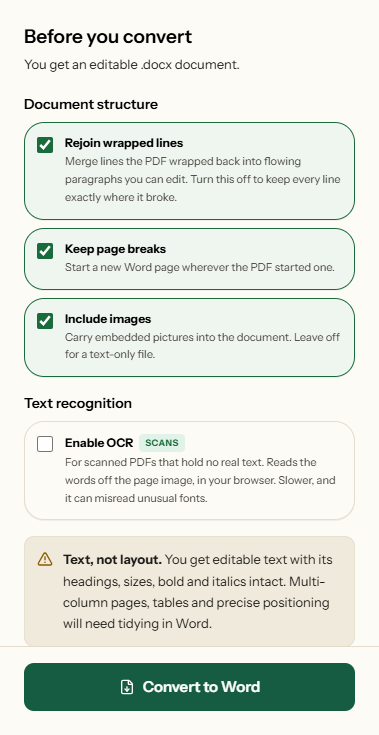
- Rejoin wrapped lines (on): joins lines the PDF wrapped back into paragraphs. Turn it off for poetry, addresses or code, where every line break matters.
- Keep page breaks (on): starts a new Word page where the PDF did. Turn it off for one continuous document.
- Include images (on): carries pictures across. Large ones are saved as JPEG and scaled to at most 1,800 pixels on the long side, so a scanned PDF does not turn into a huge .docx; small ones such as logos stay PNG. Turn it off for text only.
- Enable OCR (off): for scans. It downloads the English recognition model the first time.
What the converter looks like
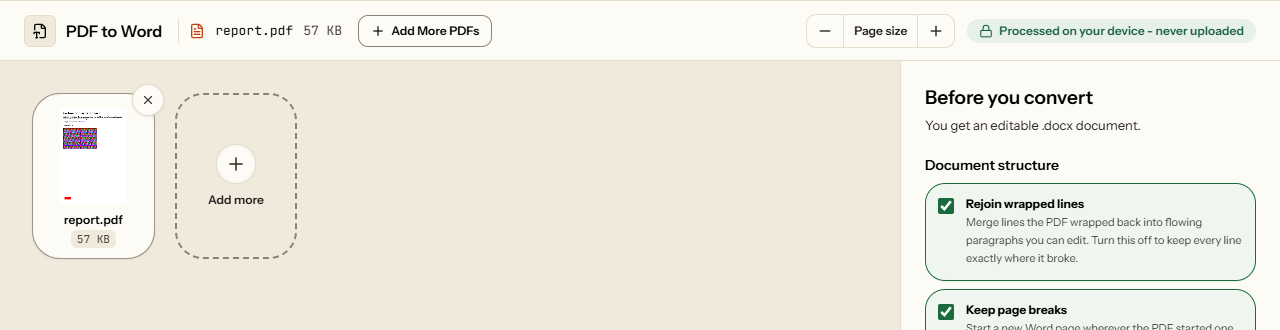
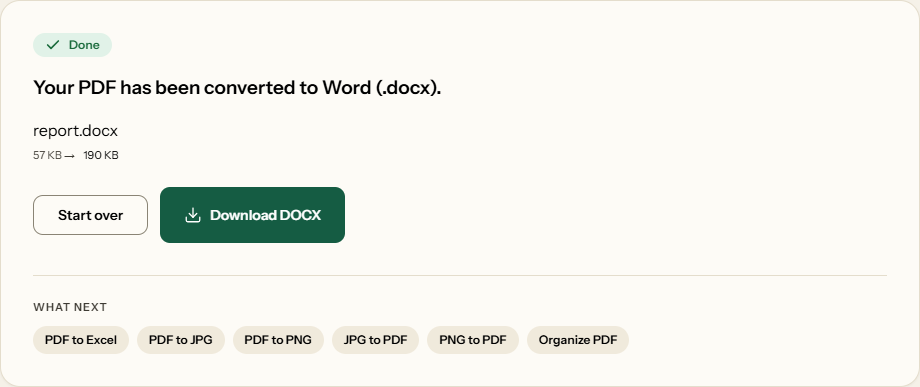
Three screens from the working tool, captured on 16 October 2026 with a 57 KB report PDF in it.
What to expect to tidy
Single-column documents - letters, agreements, reports, essays - need little. Problems come from pages whose reading order is not a single column: two-column papers, brochures with captions and pull quotes, and tables, which a PDF stores as text that merely lines up. Four fixes cover most of what is left:
- Repeated headers and footers. They are on every page of the PDF, so they are on every page of the .docx. Find and Replace removes them in one go.
- A heading that came out as plain text, or one level off. Put the cursor in it and apply the heading style you want; the navigation pane and any table of contents follow.
- Tables. Select the rows and use Insert Table → Convert Text to Table, with spaces as the separator. For real rows and columns, PDF to Excel rebuilds them.
- Lists and fonts. Select the lines and apply Word's bullet list; select all and pick the font you want.
If you only need to change a few words, converting may be more work than it saves: change a few words without converting.
Check for yourself that nothing is uploaded
- Open this page and press
F12(or right-click and choose Inspect), then open the Network tab. - Add your PDF and click Convert to Word.
- Look at the requests that appear. Click any of them and open its Payload (or Request) tab: none carries your file.
We ran the same check with a script on 8 October 2026, converting a 3.2 MB file. The page made seven requests, all for its own code and the PDF renderer, and none sent any data. With OCR on, the browser also fetches the English recognition model from a public CDN; that request downloads the model and sends nothing. Google's ad scripts may load as well; check their requests the same way. The same test for other tools is in why browser-based PDF tools are safer, and what else a file carries about you explains why the .docx is written without a creation date.
Frequently asked questions
Will the Word file look exactly like the PDF?
No. You get the text back as a document you can edit, not a copy of the page. Headings, paragraphs, bold and italics come across. Every font becomes Calibri, tables become lines of text, and links keep their words but stop being links. Single-column letters, reports and agreements need the least tidying.
Can it convert a scanned PDF?
Yes. Switch on Enable OCR and the text is read off each page image in your browser. In our test, a 10-page scanned notice came back with every one of its 2,512 words, in about 20 seconds. OCR reads English only, and faint copies, handwriting and unusual fonts are where it makes mistakes.
Are tables converted into Word tables?
No. A PDF stores a table as text that happens to line up, so each row comes out as one line with its cells separated by spaces. In Word, select those lines and use Convert Text to Table. If you need rows and columns to work with, PDF to Excel rebuilds them.
Does it keep the original fonts and hyperlinks?
No. Every converted document is set in Calibri, whatever fonts the PDF used, and underlining and text colour are not carried across. A link keeps its words but is no longer clickable. Bold, italics and sizes, and which lines are headings, are what the converter keeps.
Can I convert a Hindi PDF to Word?
Yes, with care. A Hindi PDF that holds real text converts with its words in place: in our test paragraph, 20 of 22 words came back exactly. Letters that join into one shape, such as क्ष, can be lost where the PDF stores no text for them. A scanned Hindi page does not work, because OCR reads English only.
Is there a limit on pages or file size?
There is no fixed limit on pages or file size. In our tests a 500-page text document converted in 6 to 11 seconds on a mid-range laptop. OCR is slower, two to three seconds a page. Several PDFs can be added at once; they come back together as a ZIP of .docx files.
Does it work with Google Docs and Pages?
Yes. The output is a standard .docx file, which Microsoft Word, Google Docs, LibreOffice Writer and Apple Pages all open. Headings arrive as real heading styles, so the navigation pane and any table of contents you add will pick them up.
Related Tools
Tables belong in a spreadsheet; a scan can also become a searchable PDF.