Merging, splitting and extracting keep a PDF's pages and its navigation - bookmarks, links, form fields - but drop what sits around them: accessibility tags, page labels, attachments and the title. Tools that change a document in place, like Rotate, Organize, Watermark or Sign, keep everything. We ran 16 Piqav PDF tools on the same files to find this out, including what our own tools used to lose.
Every PDF tool promises it works "without losing quality". Quality there means the pixels, and the pixels are rarely what gets lost.
A PDF also carries the things you only notice when they are gone: the bookmarks in the sidebar, the table of contents you can click, the fields in a form you have filled in, the tags a screen reader uses to read the page aloud. Most of that belongs to the document as a whole, not to any one page, and a tool that handles pages can drop all of it while the pages themselves look perfect.
So on 27 September 2026 we ran all 16 of Piqav's PDF-to-PDF tools on the same test documents and checked, feature by feature, what came out the other side. Two of our own tools turned out to be losing much more than they needed to, and making files five times bigger while they did it. We fixed both before writing this. Both are below.
The short answer
The tools fall into three groups, and the group tells you almost everything:
- Tools that add something to the pages keep everything. Page numbers, watermarks, signatures, edits, cropping, rotating, deleting and reordering pages, and a password added and removed again. Redaction keeps everything too, except on the pages you redact, which become images so the covered text is really gone. They change the document you gave them rather than building a new one.
- Tools that combine or cut documents keep the pages and their navigation, and lose the rest of the document around them. Merge, Split and Extract build a new file from copied pages. Text, pictures, web links, comments, filled-in forms, and the bookmarks and links that lead to the copied pages all come across; accessibility tags, page labels and attachments do not.
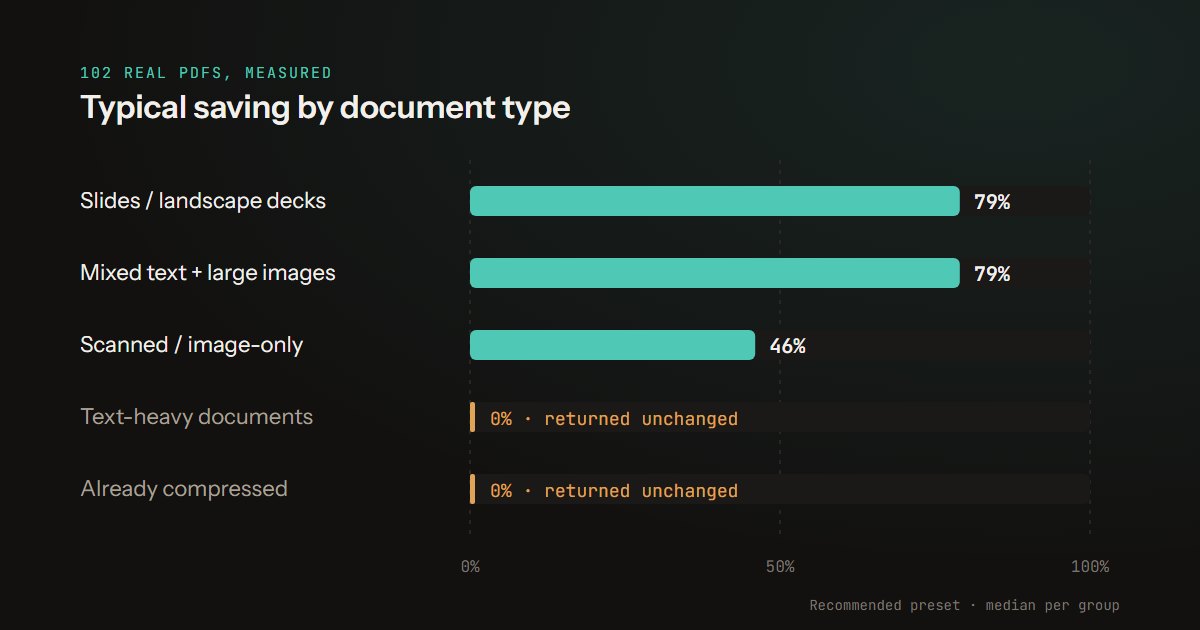
- Compress, when it actually shrinks a file, keeps only how the pages look. It redraws every page as an image, so text stops being selectable and everything else goes with it.
The results
The main test document is a six-page report exported from a browser, the way many real documents are made, with twelve bookmarks, six links between sections, six links to websites and accessibility tags. On top of that we added page labels (i, ii, then 1 to 4), an attached spreadsheet, a title and author, a layer and a comment. The second is a two-page form, filled in.
| Tool | Text stays text | Bookmarks | Links between pages | Web links | Accessibility tags | Page labels and attachments | Title and author | Form still fillable |
|---|---|---|---|---|---|---|---|---|
| Add Page Numbers, Watermark, Sign, Edit, Crop | Kept | Kept | Kept | Kept | Kept | Kept | Kept | Kept |
| Redact | Kept, except on redacted pages, which become images | Kept | Kept, except on redacted pages | Kept, except on redacted pages | Kept, except for redacted pages | Kept | Kept | Kept, except fields on redacted pages |
| Protect, then Unlock | Kept | Kept | Kept | Kept | Kept | Kept | Kept | Kept |
| Rotate, Organize | Kept | Kept | Kept | Kept | Kept | Kept | Kept | Kept |
| Delete Pages | Kept | Kept; those to deleted pages are removed | Kept, except links to deleted pages | Kept | Kept | Kept | Kept | Kept |
| Merge | Kept | Kept, under a bookmark per file | Kept | Kept | Lost | Lost | Lost | Kept |
| Split, Extract | Kept | Kept for the pages you keep | Kept between the pages you keep | Kept | Lost | Lost | Lost | Kept |
| Organize with a blank page added, or pages from two files | Kept | Kept | Kept | Kept | Lost | Lost | Lost | Kept |
| Compress, on a file it can shrink | Lost | Lost | Lost | Lost | Lost | Lost | Lost | Lost; answers show as part of the picture |
Comments survived every tool except Compress. For Compress, "answers show as part of the picture" means the typed name, the ticked box and the chosen option are still visible on the page, which we confirmed by rendering it, but they are part of the image and cannot be changed.
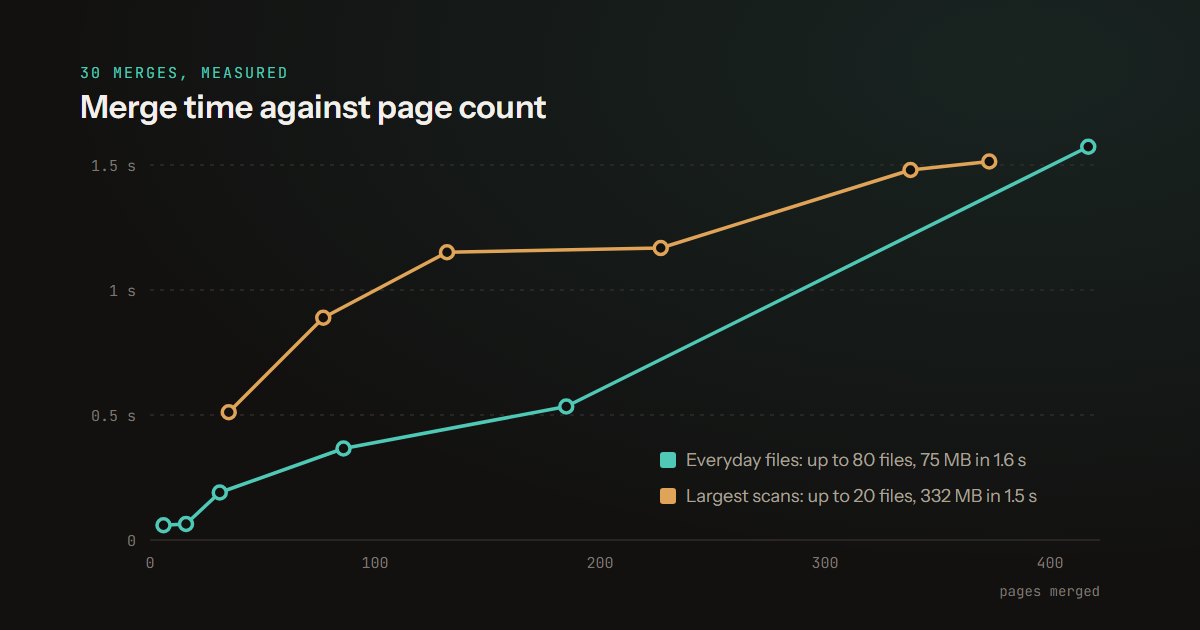
Rearrange Pages, one of the 16 tools tested, became part of Organize PDF on 11 October 2026. It used the same in-place save as Organize, so its result is the one in the Rotate and Organize row. How fast merging is, and how much memory it takes, is in our merge timings; why a black box over text is not a redaction is in why PDF redaction fails.
Why the groups split where they do
A PDF is a set of pages plus a catalogue that sits above them. The pages hold what you see. The catalogue holds the bookmarks, the list of named places that links jump to, the accessibility tag tree, the page labels, the attachments, the form definition and the title. A bookmark to section 3 is, underneath, a pointer from the catalogue to one particular page object.
A tool that opens your document, changes some pages and saves it keeps the catalogue, because it never threw it away. A tool that creates a fresh, empty document and copies pages into it gets the pages and nothing above them; the new document's catalogue starts blank. Merge has to work that way, since two documents cannot share one catalogue, and Split and Extract are making new files by definition. Compress is further out still: it replaces each page with a picture of it, so even the text and the links on the page go.
Our Merge and Split rebuild bookmarks, links and the form list from the copied pages. The rest is lost.
What we found in our own tools, and fixed
Until this test, Rotate, Delete, Rearrange and Organize all worked the copying way. Rotating a single page of the report threw away its bookmarks, its internal links, its tags, its page labels, its attachment, its title and its fillable form, which is a great deal to lose for turning one page round.
They also made files bigger. Copying pages one at a time gave every page its own copy of the fonts and images the pages shared, so the 57 KB report came out of Rotate at 289 KB, five times the size, with two embedded fonts become twelve and one image become six. That is a common failure in page tools, and it is why a file can balloon after a simple reorder in any of them: compressing it afterwards does not undo it cleanly.
Both are fixed. When every page comes from one file, those four tools now change that file directly, so the report comes out of Rotate at 57 KB with everything in the table intact. When a new file has to be built, because pages from two files are combined or a blank page is added, pages are copied in one pass and shared fonts and images are written once. The same report with a blank page added now comes out at 53 KB.
The first version of that fix had two flaws of its own, and the test caught both. Taking a page out of the document left its images inside the file, so deleting four pages of a six-page scan left it exactly as large. Worse, it left words from the deleted page behind: after deleting page 2 of the report, its bookmark titles, the alt text of its chart and the address of its link were all still in the download, held by the bookmarks and the accessibility tags, and a form kept the answer typed on a deleted page. Deleting a page to get rid of what is on it is exactly when that matters.
Now, when pages are deleted, the bookmarks, tags, form fields and link targets that belonged only to them go too, the pages are emptied, and anything nothing else uses is dropped. We check it by searching the whole downloaded file for the deleted page's words; none are left, and the kept pages' own words all are. The scan now goes from 1,245 KB to 416 KB, which is the two pages that are left.
Forms were the last fix. Merge, Split and Extract used to leave a filled-in form looking right but dead: the answers came across as part of each page, but the list of fields a PDF keeps at document level did not, so no viewer would let you change them. Those tools now rebuild that list from the fields on the pages they copied, so the form stays fillable and keeps its answers. Merging two copies of the same form is the case to watch: in a PDF, two fields with one name are one field, and typing in either would fill both. The second copy's fields are renamed, name1 becoming name1_2, so the copies stay independent.
Then links and bookmarks. The copying tools used to drop both, and a later test turned up something worse: a link on a copied page that pointed straight at another page made the copy drag that page into the new file, hidden but complete. Extracting page 1 of a document whose page 1 linked to page 3 put page 3 inside the download. Every link and bookmark is now followed back to its page. If that page was copied, it points at the copy; if it was not, the link goes inert, the bookmark is dropped, and the hidden page is deleted. A merged file now keeps each file's own bookmarks, folded under one named after the file.
Keeping bookmarks, forms and tags: what to know before you start
Put page-moving work first and finishing work last. If a document has tags or attachments you care about, merge, split or extract before anything else, then add page numbers, a watermark or a signature, which keep everything. Compress, if you need it at all, goes last, because nothing structural survives it.
Merging copies of the same form renames the second set of fields. They stay fillable and independent, but a system that reads the answers back by field name will find the second copy's under new names such as name1_2.
Merge folds each file's bookmarks under one named after the file. A long report's chapter bookmarks are still there, one level down. Turn off Auto-Generate Bookmarks and they are listed at the top level instead.
Deleting a page takes its bookmarks with it. In our report, deleting page 2 removed the two bookmarks that went there and left the other ten working. A link on another page that jumped to page 2 is still there but no longer goes anywhere, so check a clickable table of contents after deleting.
Splitting a tagged document gives screen-reader users less. The pieces keep their text, but not the tags that say what is a heading, a list or a table. If the file has to be accessible, keep the original for that purpose.
How the test was built
Documents. The report was produced by Microsoft Edge's print-to-PDF with tagging and an outline switched on, so its fonts, tags, headings and links are those of a real export rather than hand-made. The page labels, attachment, title and author, layer and comment were added to it with pdf-lib. The form is two pages with a text box, a tick box and a drop-down on each, all filled in. For Compress, which returns a file untouched when it cannot make it smaller, both were also tested with a large photo on every page, 5.4 MB each, so it had something to compress. A six-page scan with a different image on every page was used to check that deleting pages frees space.
Tools. Fourteen tools ran their real processing code, unchanged, in Microsoft Edge 154 against a development build of this site, sent the same instructions each tool's page sends at its default settings. Split and Crop do their work in the page itself rather than in a background worker, so their steps were reproduced from the site's source instead.
Checks. Each output was read back and checked for each feature: text by extracting it and looking for a marker on every page, bookmarks and internal links by following each one to confirm it lands on a page that exists, and the rest by looking for it in the file. Form answers were confirmed by rendering the page, not only by reading the file. For the tools that drop pages, every string and every decompressed stream in the output was also searched for words that appear only on the removed pages, and for words from the kept pages, so an empty file could not pass.
Limitations. These are two test documents, not a corpus of real ones, and a feature being present is not proof it is complete: we checked that the tags survive, not that every tag is still correct after a page is deleted. Digital signatures, the cryptographic kind, were not tested; any tool that rewrites a file would break one. Conversions to Word, Excel or images and OCR make different kinds of file and are not in the table. And all of it describes the tools as they stood on 27 September 2026. We will run it again when they change.
The one-line version
Tools that add to your pages keep everything. Tools that combine or cut documents keep what is on the pages and lose what is around them. Compressing keeps the look. Every tool in the table runs in your browser, so none of your documents are uploaded while you find out which kind you need.