Gmail and Yahoo Mail accept up to 25 MB of attachments in a message; Outlook.com stops at 20 MB, counting the message itself (each provider's help page, checked 11 October 2026). Company mail servers are often stricter, and many never tell you their limit until the message bounces. So the question is usually not "how do I make this PDF smaller" but "how do I get this particular file under this particular number" - and the answer depends almost entirely on what kind of PDF it is.
This guide is built on measurements rather than promises. We compressed 102 real PDFs from one person's working documents with Piqav's Compress PDF tool and recorded every result, including the files it could not shrink. The full method is in our compression benchmark; the parts that matter for email are below.
First, check what kind of PDF you have
A PDF is a container. What makes one heavy is what it contains, and compression can only remove weight from some kinds of content.
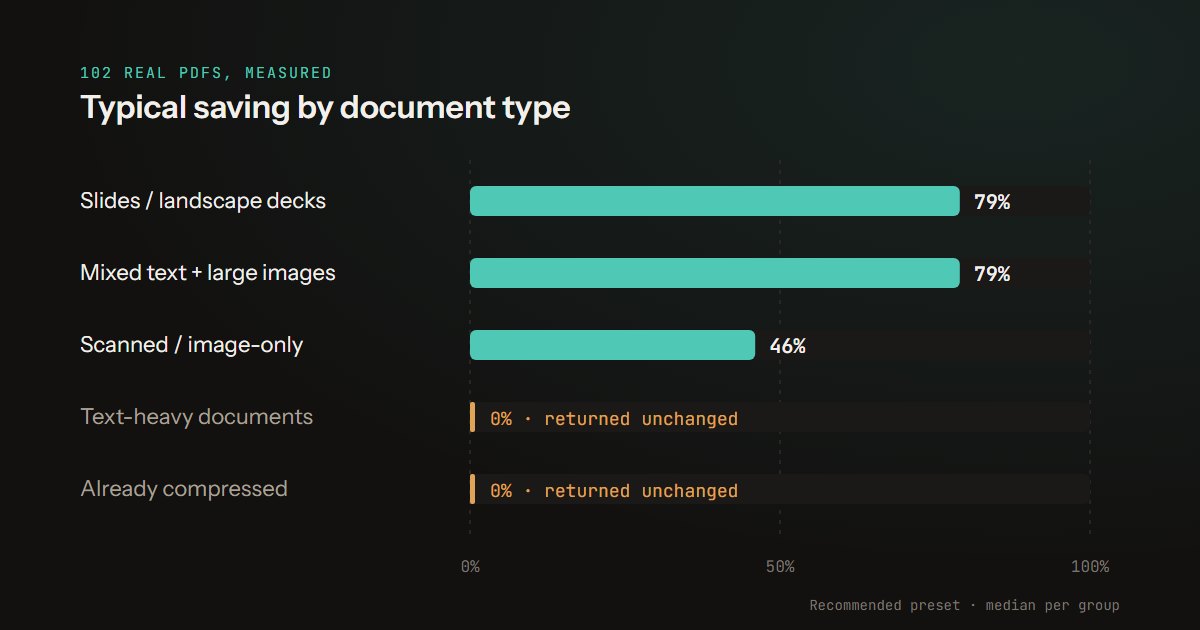
A scan or photo-based PDF - from a scanner app, a copier or a phone - stores every page as a photograph. That is the case compression was made for. Across the 40 scanned documents in our set, the typical saving at the Recommended setting was 46%, and all but one got smaller.
A PDF exported from Word, Google Docs or a web page stores letters, not pictures of letters. It is usually small already, and it is the case compression cannot help. Of 41 text-heavy documents, 22 came back unchanged - the typical saving was 0%. If one of these is too big to email, the weight is almost always in the images you placed in the document, and the fix is to shrink them there and export again.
Slides and documents with large photos sit in between and do well: 79% typical saving for both slide decks and mixed text-and-image files in our set.
The quickest way to tell which you have: open the PDF and try to select a sentence. If you can highlight individual words, it is text. If you can only draw a box, the page is an image.
What compression costs you
Piqav's compressor works by redrawing every page as a JPEG image, at about 108 DPI on the Recommended setting. That is why scans shrink so well, and it has consequences you should know before you send the file:
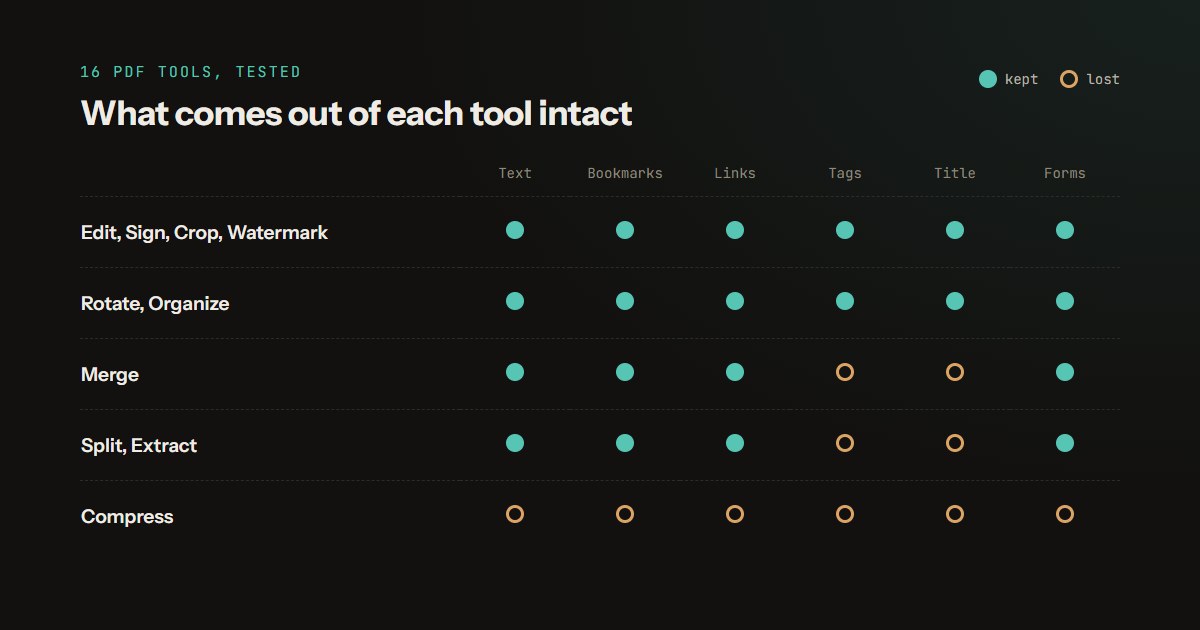
- The text stops being text. You can no longer search the document, copy a sentence out of it, or have a screen reader read it aloud.
- Links and bookmarks are gone, and filled-in form fields become part of the picture - still visible, no longer editable.
- Sharpness drops a little. At 100% zoom on Recommended we could not tell compressed pages from the originals in our test set; zoomed to about 250%, letter edges soften.
So compress the copy you are sending, and keep the original. If the recipient needs to search or edit the document, compression is the wrong fix - see the alternatives further down. The tool is also honest in the other direction: when redrawing a page would make the file larger, which is common for text documents, it hands back your original untouched and says so.
How to compress a PDF for email
- Open Compress PDF and add your file. It is processed in your browser rather than uploaded, and files up to 100 MB each are accepted. Several files at once come back as one ZIP.
- Leave the setting on Recommended for email. In a comparison on 14 image-heavy files, Low Compression saved 53% typically and kept the most detail; Recommended saved 76%; Extreme saved 89% but visibly softens text, and we would not print from it.
- If the file is password-protected, the tool asks for the password before it starts; you do not need to unlock it separately.
- Check the before and after sizes on the result screen, and open the file at 100% zoom before you attach it.
Compress once. Running the compressed file through again saved an average of 1% in our tests, because the pages are already JPEGs at that resolution. If the first pass did not get you under the limit, go back to the original and choose Extreme or a target size instead.
When you have an exact number to hit
For a form or portal with a fixed limit, open Custom Options and set a target size instead of a preset. Whether a target is reachable depends mostly on the page count. In tests on scanned pages, 50 KB held a single page, 100 KB held two, 200 KB held four, and 500 KB held ten. When a target is too tight, the compressor stops at roughly 32 KB a page rather than making the text unreadable, and tells you it missed. The full table is on the Compress PDF page.
| Target | 1 page | 2 pages | 4 pages | 10 pages |
|---|---|---|---|---|
| 50 KB | 46 KB | Too tight | Too tight | Too tight |
| 100 KB | 88 KB | 92 KB | Too tight | Too tight |
| 200 KB | 136 KB | 175 KB | 183 KB | Too tight |
| 500 KB | 232 KB | 347 KB | 433 KB | 459 KB |
| 1 MB | 232 KB | 472 KB | 695 KB | 874 KB |
PDF still too large to email? When compression is not enough
Email limits are rarely missed by a little. If your file is still too large, change what is in it rather than squeezing harder:
- Send only the pages that matter. Extract PDF Pages builds a new file from the pages you choose, which is often the fastest way under a limit.
- Remove blank pages left by a duplex scanner with Delete PDF Pages. A blank scanned page is still a full-page photograph of paper.
- Scan smaller next time. Most oversized PDFs were scanned at far more resolution than they need; what DPI to scan at shows what each setting costs in size and in OCR accuracy.
- Split it across emails with Split PDF, if the recipient does not need one file.
- Send a link instead. Gmail and Outlook both offer to send large files as a cloud-storage link rather than an attachment. That uploads the file to your own account, which may be fine for a holiday album and not for a medical record.
One trap to avoid: cropping the margins does not make a PDF smaller. A crop hides part of the page, but the full image stays in the file underneath.
Email attachment size limits: leave some headroom
Attachments are encoded for sending, which makes them larger in transit than on your disk, and some providers count the encoded size against the limit. We encoded our test PDFs the way email does - base64, in lines of 76 characters - and every one came out 1.368 times its size on disk. A 19 MB PDF is sent as 26 MB, over a 25 MB cap; the largest file that fits under one is about 18.3 MB. If you are close to a limit, aim well under it.
Where the numbers come from
Savings by kind of PDF come from our compression benchmark: 102 real PDFs compressed with Compress PDF's real processing code, with the method and every limitation set out there.
What each target size holds comes from a test script of ours that compresses scanned documents of 1 to 10 pages to every target the tool offers and checks the words are still readable afterwards.
The attachment overhead comes from a second script, which encodes each test PDF as base64 in 76-character lines, as email attachments are sent. Providers differ in whether they count the encoded or the original size; we did not test individual providers.
Frequently asked questions
Will the recipient notice the file was compressed? On screen at normal zoom, usually not with the Recommended setting. They will notice if they try to search the document or copy text from it, because compressed pages are images.
Why did my PDF not get any smaller? It was almost certainly exported from a word processor or a web page, so it stores text rather than images, and redrawing it as images would have made it larger. The tool returns the original in that case. Look for large photos inside the source document instead.
Is it safe to compress confidential documents this way? The PDF is read and rewritten in your browser, so the document itself is not sent to our servers. That matters more for payslips, medical reports and ID scans than for anything else you are likely to email - and those are usually scans, which is exactly the kind of PDF compression handles well.