Merging is the cheapest thing you can do to a PDF, and almost nobody puts a number on it.
So we did. On 22 September 2026 we ran about 30 merges through Piqav's Merge PDF tool - everything from two small documents to all 101 files in our test corpus at once, 954 pages and 401.6 MB in a single operation - and recorded the time, the output size, the peak memory and what survived intact.
The short version: merging 101 files took 3.4 seconds, the result was 0.25% smaller than the sum of its inputs, and every page, every character of text and every annotation came through unchanged. The interesting parts are the memory cost and the one file that refused to merge at all.
Speed on everyday files
Each row is the median of three runs on the same files, in the same order. "Merge" is the work itself; "read" is pulling the files into the browser first.
| Files | Pages | Total size | Read | Merge | Per page |
|---|---|---|---|---|---|
| 2 | 6 | 2.5 MB | 23 ms | 59 ms | 9.8 ms |
| 5 | 16 | 3.3 MB | 34 ms | 64 ms | 4.0 ms |
| 10 | 31 | 7.4 MB | 60 ms | 190 ms | 6.1 ms |
| 20 | 86 | 17.9 MB | 181 ms | 366 ms | 4.3 ms |
| 40 | 185 | 39.2 MB | 320 ms | 534 ms | 2.9 ms |
| 80 | 417 | 75.5 MB | 649 ms | 1,573 ms | 3.8 ms |
Nothing here is slow enough to think about. Eighty documents - 417 pages, 75 MB - merged in about a second and a half, and the fixed startup cost of roughly a tenth of a second dominates anything smaller than ten files.
For scale: in our compression benchmark, on the same machine and the same corpus, a page took a median of 232 ms to compress. Merging a page costs single-digit milliseconds. Those two operations are not in the same category of work, and the reason is the next section.
Merging large PDF files: big files barely cost more
The everyday table is dominated by page count. To separate size from page count, we merged the largest scans in the corpus, where a handful of files carries hundreds of megabytes:
| Files | Pages | Total size | Merge | Per page |
|---|---|---|---|---|
| 2 | 35 | 126.3 MB | 511 ms | 14.6 ms |
| 5 | 77 | 207.8 MB | 889 ms | 11.5 ms |
| 8 | 132 | 258.0 MB | 1,151 ms | 8.7 ms |
| 12 | 227 | 295.2 MB | 1,168 ms | 5.1 ms |
| 16 | 338 | 319.8 MB | 1,480 ms | 4.4 ms |
| 20 | 373 | 332.0 MB | 1,514 ms | 4.1 ms |
332 MB across 20 files merged in 1.5 seconds - about the same as 75 MB across 80 files. Both size and page count cost time, and across all 30 runs the rough shape is 1.7 ms per megabyte plus 2.6 ms per page, though individual runs sit up to 40% off that line, so treat it as a sense of scale rather than a formula.
The reason merging is cheap is that it never looks at your content. It copies page objects from one file's structure into another's and writes the result out. It does not decode a single image, which is exactly what compression spends all its time doing.
Merging copies page objects without opening them. Compressing decodes every image and encodes it again.
The whole corpus, in one go
Then we merged everything: 101 files, 954 pages, 401.6 MB, one operation, bookmarks on.
| Run | Read | Merge | Output | Change |
|---|---|---|---|---|
| First | 2,031 ms | 3,444 ms | 400.6 MB | −0.25% |
| Repeat | 1,839 ms | 3,029 ms | 400.6 MB | −0.25% |
It did not fail, and it did not need a special mode. The resulting 400 MB PDF opened normally with all 954 pages, all 101 bookmarks and 663,020 characters of searchable text intact.
Memory is the real ceiling. During that merge, Chrome's total memory rose by 2.2 GB above its idle level - roughly five and a half times the size of the input. That is the number to plan around: the browser holds every input file, the assembled document and the saved output at once. On a 16 GB laptop with nothing else open this is fine. On a 4 GB Chromebook with thirty tabs, a 400 MB merge is the thing that will fail, and it will fail as a tab crash rather than an error message.
What survives a merge
We compared a 20-file merge against its own inputs, counting everything:
| Measured | 20 input files | Merged output |
|---|---|---|
| Pages | 73 | 73 |
| Characters of text | 89,427 | 89,427 |
| Annotations | 3 | 3 |
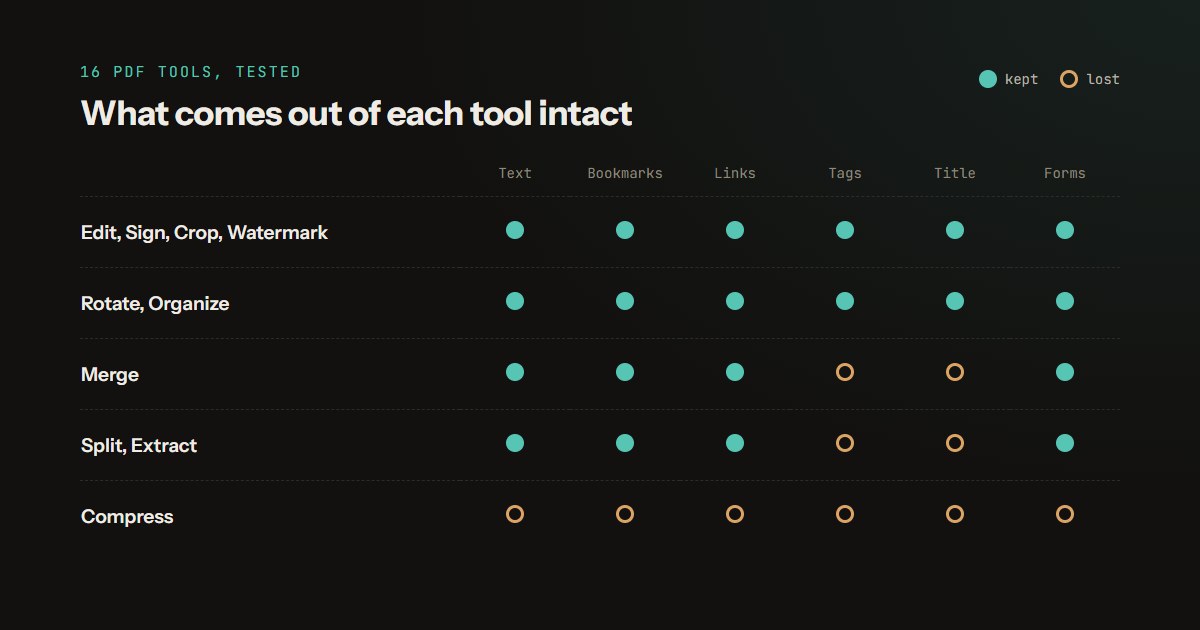
| Bookmarks | 0 | 20 |
Nothing on the pages was lost and one thing was added: a bookmark per source file, named after the file, so a merged stack stays navigable. Generating them is free - 331 ms with bookmarks versus 323 ms without, which is inside the noise.
This is worth stating plainly because it is the opposite of what compression does. Compressing a PDF here turns its pages into images and takes the text layer to zero characters. Merging leaves the text exactly as it found it. What a merge does give up is structure these twenty files did not have: accessibility tags, page labels, attachments and the document's title. A file's own bookmarks and the links between its pages used to be lost too; since 27 September they are carried across, with each file's bookmarks folded under one named after the file. We tested all of it, with documents that have every feature, in what survives each PDF tool.
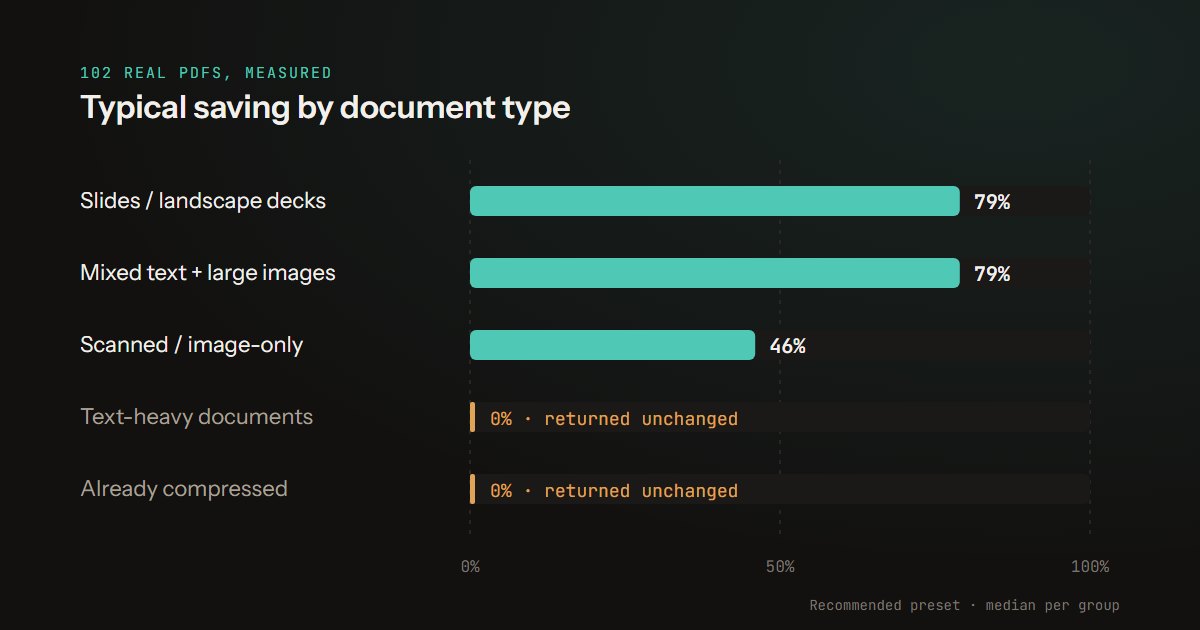
Merging does not shrink anything. Output landed between 0.25% and 1.1% below the sum of the inputs across every run - a rounding error from unreferenced objects being dropped in the rewrite, not compression. If you are merging to get under an email limit, merge first and then compress, or tick "Compress Merged File" in the settings panel, which runs the compression engine on the result.
The one file that failed, and the fix
Of 102 documents we tried to merge individually, 101 worked and one did not: a PDF carrying an owner password. It opens in any viewer without being asked for anything, so the tool's password check - which uses a different PDF library - sees nothing wrong and never prompts. The merge step then refuses it outright with "File 1 is password protected."
That was a rough edge in our flow, not a property of your file, and it has since been fixed. On 29 September we made an owner-password file with our own Protect tool and merged it with an ordinary one: all 12 pages came through, with their text.
How the test was built
Files. The same corpus as our compression benchmark: 102 real documents deduplicated from one person's working folder - scans, statements, resumes, government circulars, slide exports - 961 pages and 410 MB in total, ranging from 8.8 KB to 75.8 MB. The one owner-password file was excluded from the multi-file runs after it failed on its own, leaving 101.
Merge order and repeats. Files were sorted by name and then shuffled with a fixed seed, so every run picks the same files in the same order. The scaling runs were repeated three times each and the median reported; the whole-corpus merge was run twice.
Settings. Bookmarks on, no page ranges, no compression - the tool's defaults. The bookmark comparison is the only run that changed a setting.
Browser and device. Google Chrome 153, headless, on Windows 11 with a 12th-gen Intel Core i5-12450H and 16 GB of RAM. The code under test is the production build of this site driving the same Web Worker and the same pdf-lib merge path that runs when you use the page.
Timing. "Read" and "merge" are measured separately in the page with performance.now(). Files were served to the browser over a local HTTP server rather than chosen through the file picker, so the read column understates a real disk read slightly and none of it reflects network time - the merge column, which is the thing being benchmarked, is unaffected.
Memory. Peak memory is the sum of all Chrome process working sets, sampled continuously during the merge and compared against an idle baseline taken immediately before it. That baseline included other browser windows on the same machine, so treat the 2.2 GB as a good estimate of the delta rather than an exact allocation figure.
Limitations. One corpus, one machine, one browser, and a headless one at that. Median of three runs is enough to suppress obvious noise but not to characterise the tails. We did not test page ranges, drag-to-reorder, or merging the same file with itself many times. The rough per-MB and per-page model has a mean absolute error of 41% and should not be used to make promises. And all of it describes the tool as it stood on 22 September 2026.
What to expect from your own merge
If you are merging a handful of documents, it is done before you can look away. If you are merging a hundred, it is a few seconds. If the merged file needs page numbers, add them after merging, not before - numbering a merged file shows what goes wrong the other way round. The thing that will stop you is not the number of files but the total size against the memory on your device - and if you are anywhere near a few hundred megabytes, close some tabs first.
Merge PDF runs entirely in your browser, so none of those files go anywhere while this happens.