Every PDF compressor on the internet advertises a percentage. Almost none of them say which files it came from.
So we measured our own. On 22 September 2026 we ran 102 real PDFs - 961 pages, 410 MB in total - through Piqav's Compress PDF tool at its default setting, and recorded the result for every single one. That includes the 29 files it could not shrink at all, and the file it would have made 19 times bigger if it had not stopped itself.
Across the whole set, 410 MB went in and 126 MB came out. But that headline is the least useful number in this post, and the rest of it explains why.
The results
Every row is measured, at the Recommended preset, with no per-file tuning. "Typical saving" is the median across the files in that group; the average is there beside it because the two disagree, and the disagreement is the interesting part.
| Document type | Files | Avg. before | Avg. after | Typical saving | Average saving | Unchanged |
|---|---|---|---|---|---|---|
| Scanned / image-only | 40 | 6.5 MB | 1.8 MB | 46% | 48% | 1 |
| Text-heavy documents | 41 | 0.4 MB | 0.2 MB | 0% | 23% | 22 |
| Slides / landscape decks | 9 | 1.4 MB | 0.5 MB | 79% | 73% | 0 |
| Mixed text + large images | 7 | 13.9 MB | 2.0 MB | 79% | 69% | 1 |
| Already compressed by Piqav | 5 | 4.8 MB | 4.8 MB | 0% | 0% | 5 |
| All files | 102 | 4.0 MB | 1.2 MB | 31% | 39% | 29 |
The spread inside each group is wide. The best result in the set was 93%; the worst 0%. A single 75.8 MB file compressed to 5.7 MB on its own, which is most of the difference between the 39% average saving per file and the 69% saving by total bytes. If we wanted a bigger number for the top of this page, we would quote the second one. It is true, and it mostly measures the fact that one file in the set was enormous.
What a result looks like
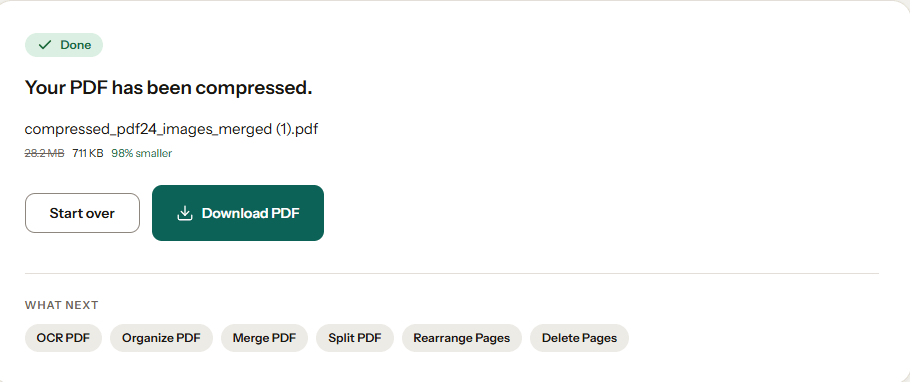
Two runs from the tool itself. Every run reports the old size, the new size and the percentage together, so a small saving cannot be dressed up as a large one.
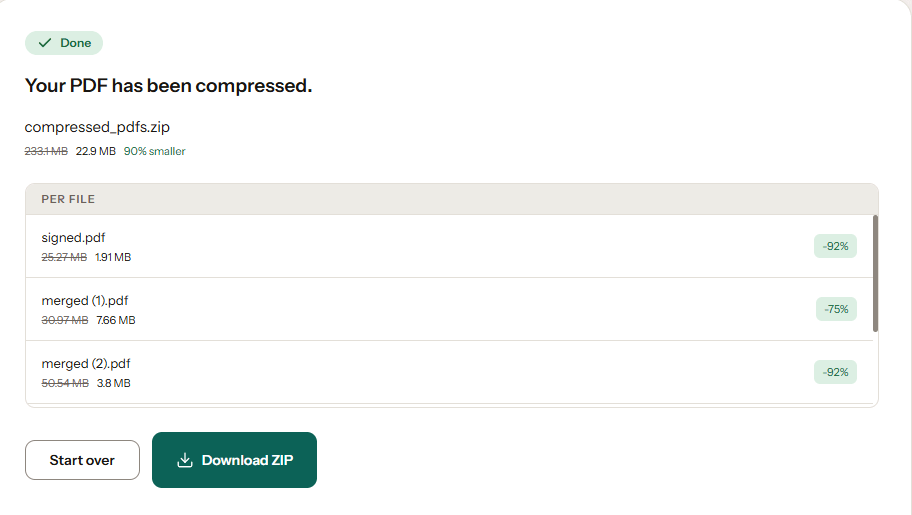
29 files out of 102 came back exactly as they went in
This is the finding that matters most, and it is the one no compressor's marketing page mentions.
Piqav compresses by re-rendering every page as a JPEG image. That is devastating for a scan, which was already a photograph of paper, and actively counterproductive for a text document, where the original file stores a few kilobytes of font data and character positions and the JPEG has to store every pixel those characters are drawn as.
When the re-encoded file comes out larger than the original, the tool hands back your original file untouched and says so. To find out how much larger, we re-ran those 29 files with the guard switched off. The re-encode was a median of 3.5× the original size, and in the worst cases:
| File | Pages | Original | What the re-encode weighed |
|---|---|---|---|
| 2-page text document | 2 | 8.8 KB | 168 KB (19.2×) |
| 9-page tax statement | 9 | 88 KB | 963 KB (10.9×) |
| 7-page A4 text document | 7 | 108 KB | 923 KB (8.6×) |
| 159-page government circular | 159 | 2.7 MB | 19.5 MB (7.3×) |
| 52-page report | 52 | 1.1 MB | 7.2 MB (6.4×) |
A compressor that reported "0% saved" on these would be telling the truth. One that silently returned the 19.5 MB file would also be telling the truth, in a way. If your PDF came out of Word, Google Docs, LaTeX or a modern web page, expect the first outcome, and treat any tool that claims a large saving on it with suspicion.
The three presets, on the same files
The table above is all Recommended. To see what the other two presets do, we took a 14-file subset (112 pages) spanning all four document types - every file one that Recommended could actually shrink - and ran all three:
| Preset | Typical saving | Average saving | Returned unchanged | Speed |
|---|---|---|---|---|
| Low (high quality) | 53% | 37% | 4 of 14 | 434 ms/page |
| Recommended | 76% | 62% | 0 of 14 | 246 ms/page |
| Extreme | 89% | 84% | 0 of 14 | 137 ms/page |
Extreme is not a marginal gain over Recommended - on this subset it roughly halves the file again. It is also the setting where the quality cost stops being theoretical, which is the next section. Note that the aggressive presets are faster: they render each page at a lower resolution, so there are fewer pixels to encode.
What you give up
Two things, and only one of them is visible.
The text layer is destroyed. This is not a quality trade-off, it is a change of file type. We checked three compressed outputs with a PDF text extractor. One of them contained 1,535 characters of selectable, searchable text before compression and 0 characters after. The page looks identical and behaves like a photograph of itself: no Ctrl-F, no copy-paste, no screen reader, no link, no form field, no bookmark. If you need any of those, compress the images inside your source document and export a fresh PDF instead. If you have already flattened a document this way and need the text back, OCR PDF can re-derive an approximation of it.
Sharpness goes, gradually. We inspected before-and-after renders side by side at 100% and at roughly 250% zoom. At 100%, on Recommended, we could not tell the compressed pages from the originals - including a 25 MB scan of a laminated ID card that compressed by 92% with its QR code still cleanly readable. At 250%, the difference is obvious on synthetic text: letterforms soften at the edges, hairline table borders and card outlines fade, and flat colour blocks pick up faint JPEG mottling. Nothing became unreadable at Recommended. Extreme is a different matter, and we would not send a document to a printer from it.
Speed
The median page took 232 ms to render and encode. The largest file in the set, 75.8 MB across 21 pages, took 15.2 seconds start to finish. A 7-page, 25 MB scan took 5.0 seconds. Nothing in the set timed out or failed; all 102 files produced a result.
This is single-threaded work in a browser tab on one laptop, and it scales with pixels rather than megabytes. A 159-page, 2.7 MB text document took 6.9 seconds; a 4-page, 2.9 MB scan took 1.3 seconds. Page count is the thing that costs you time, not file size.
Compressing twice does nothing
Of the 73 files that Recommended actually shrank, we immediately ran the compressed output through the tool a second time. The average second-pass saving was 1%, the median was 0%, and 18 of the 73 came back unchanged. Once a page is a JPEG at roughly 108 DPI, re-encoding it at roughly 108 DPI buys nothing but another generation of artefacts. If the first pass did not get you under your limit, change the preset or set a target size - do not run it again.
How the test was built
Where the files came from. The corpus is one person's real working document folder: bank challans, tax acknowledgements, scanned ID and medical documents, resumes, offer letters, government circulars, slide exports, app-screen PDFs and files that had already been through Piqav's own tools. Nothing was downloaded for the test and nothing was synthesised. This is the honest description and also the first limitation: it is one person's documents, not a random sample of the world's PDFs.
Deduplication. The folder held 156 PDFs, many of which were variants of the same source document produced by other Piqav tools - a watermarked copy, a rotated copy, a redacted copy. Files were fingerprinted on page count, page dimensions and first-page text, and only one file per fingerprint was kept, leaving 102. Five files were password-protected and excluded, since they would have needed a prompt mid-run.
File sizes. Individual files ranged from 8.8 KB to 75.8 MB (median 0.9 MB), and documents from 1 to 159 pages. 961 pages, 410 MB in total.
Categories. Assigned mechanically from the file's own structure rather than by eye: sampling up to the first five pages, image-only means under 50 extractable characters per page, text-heavy means 400 or more, landscape page geometry means slides, and "already compressed" means the file was itself the output of a compressor. Files between the text thresholds are the "mixed" row. A human might label a handful of these differently.
Settings. The Recommended preset, exactly as it ships: pages rendered at 1.5× base scale (~108 DPI), JPEG quality 0.70, a 0.6 MB per-page ceiling, colour left as-is, no target size and no custom DPI. No file was tuned. The preset comparison used the shipped Low, Recommended and Extreme presets, unchanged.
Browser and device. Google Chrome 153, headless, on Windows 11 with a 12th-gen Intel Core i5-12450H and 16 GB of RAM. The tool under test was the production build of this site, served locally, driving the same Web Worker and the same PDFium WebAssembly module that runs when you use the page - not a reimplementation of it in Node, and not the development build. Timings are from one machine; yours will differ.
Quality inspection. Yes, by eye, and not on all 102. Before-and-after pages were rendered to images at matched dimensions and compared at 100% and roughly 250% zoom for a sample across the categories, and text layers were checked programmatically on three files. The sample images are not published here, because the corpus is made of real personal documents - passports, medical reports and tax filings are exactly the sort of thing we built a browser-based tool to keep off other people's servers, and putting them in a blog post to prove a point about compression would be a poor way to make it.
Known limitations. One corpus, one person, one machine, one run per configuration - no repeat runs, so the timings carry ordinary measurement noise. Image-heavy documents are over-represented relative to a general population of PDFs. Because several documents in the set share a source, we recomputed the whole table against a stricter 90-file subset with near-identical files removed; the overall average saving moved from 39% to 39% and the median from 31% to 28%, so the grouping is not carrying the result. Quality was judged by a human looking at renders, not by SSIM or any other metric. And every number here describes this tool at this date: the compression pipeline can change, and if it does, this post is stale until we re-run it.
Date of testing. 22 September 2026. The measurements are from Piqav's compressor as it shipped that day.
What to expect from your own file
If it is a scan, a photo album or an image-heavy export, expect somewhere between half and 90% off, and check it at 100% zoom before you send it. If it came out of a word processor, expect nothing, and be glad the tool tells you so instead of handing you a file that is bigger and no longer searchable. If it has already been compressed once, expect nothing at all.
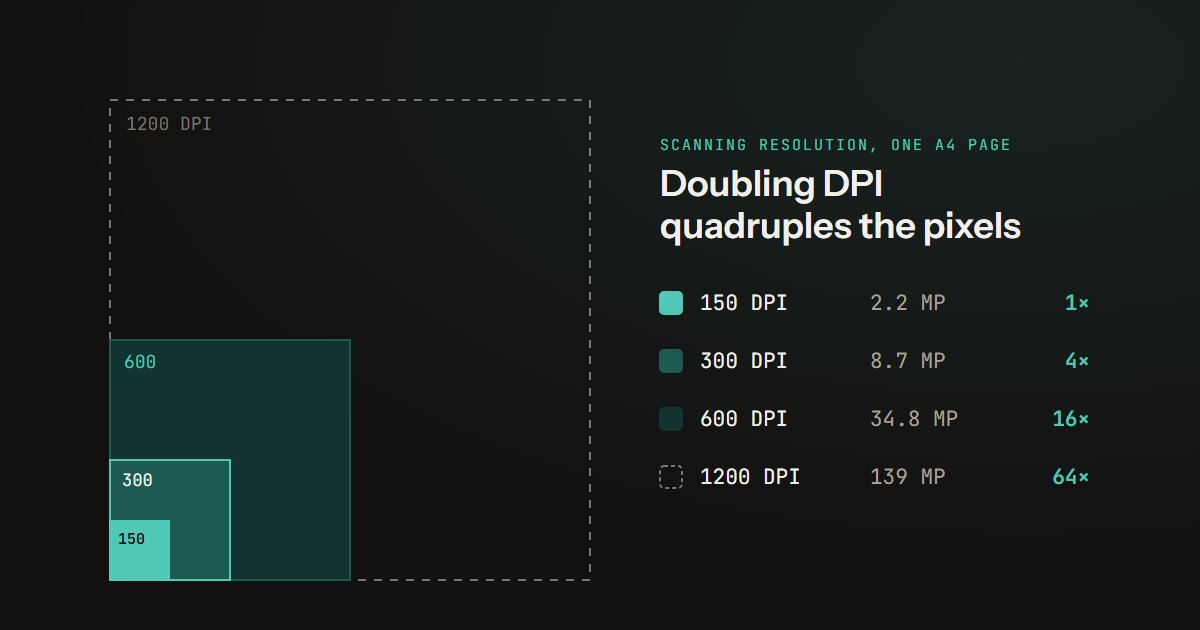
If the document is a scan you have not made yet, what DPI to scan at settles much of its size before any compressor sees it. If the limit you are fighting is an email attachment cap, getting a PDF under an email limit covers what to do when compression alone is not enough.
You can check any of this yourself in about thirty seconds, on your own file, without uploading it anywhere: Compress PDF.