Image to Text Converter
Copy the words out of a photo, scan or screenshot: printed text in 11 languages, read on your device.
Copy the text out of any picture
A photo of a notice, a screenshot of a message, a scanned receipt: the words are there, but you cannot select them. Add the picture and this image to text converter reads it and gives you the words to copy, or to save as a .txt file. It reads printed and typed text in 11 languages, including Hindi, Marathi, Bengali and Tamil. Your device does the reading, in this tab, so the picture is never uploaded.
What we measured
On 14 November 2026 we read seven test pictures with the tool in Chrome on a Windows laptop and compared every character with the text we had put in. The pictures were made for the test, each imitating something people photograph or capture, so the right answer was known exactly.
| Picture | Characters right | Time |
|---|---|---|
| Screenshot of a notice, 1280 × 720 | 100% | 3.9 s |
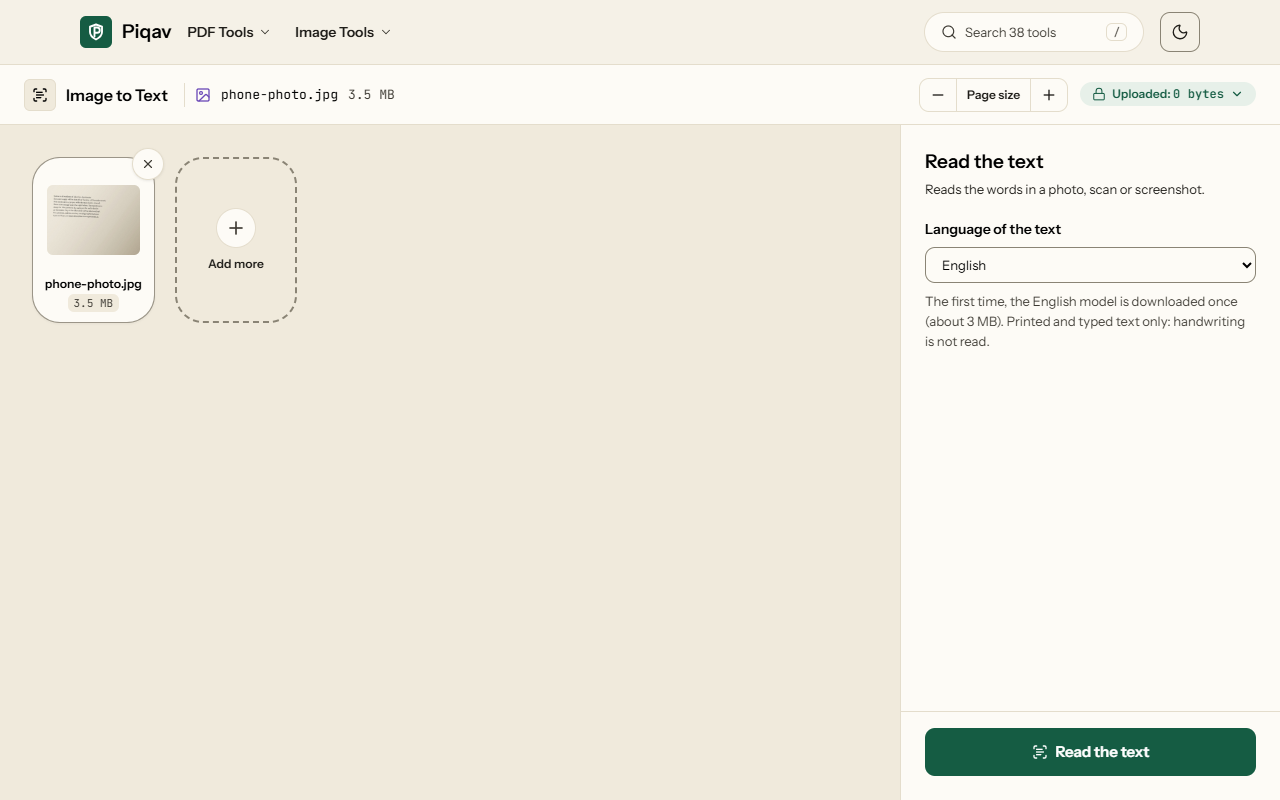
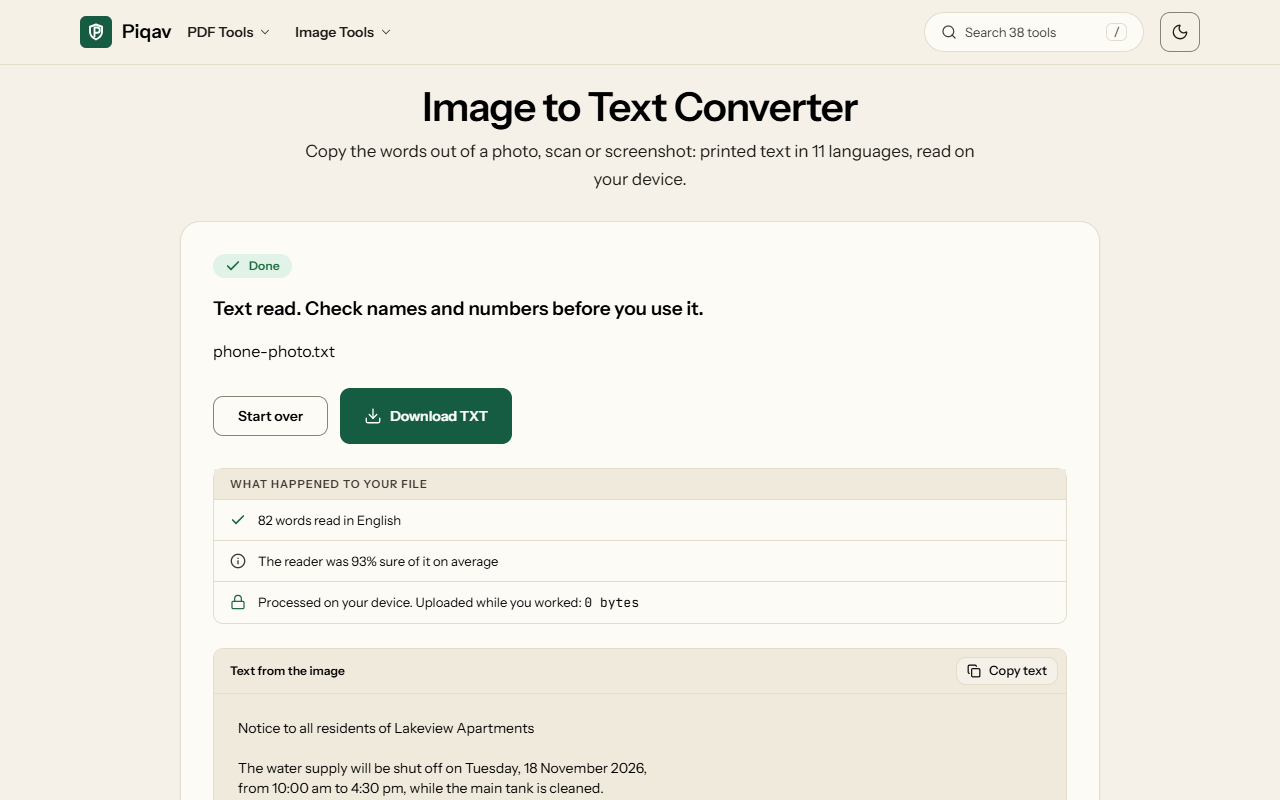
| Phone photo of a printed page: tilted, shadowed, grainy, 12 MP | 99.8% | 5.4 s |
| Small image, 640 × 300, with 11-pixel text | 99.8% | 2.9 s |
| Photo of a Hindi notice (Hindi + English chosen) | 100% | 2.9 s |
| Dark-mode screenshot, light text on black | 100% | 1.9 s |
| Sale poster with 220-pixel headline | 100% | 1.9 s |
| White text on a blue banner | 98.5% | 1.8 s |
The first picture includes downloading the English reading model, about 3 MB, which happens once. The one mistake on the banner was the code SAVE20, read as SAVEZ20, which is why the result screen asks you to check names and numbers.
Why a phone photo needed extra work
Our first version read the phone photo as nonsense. The engine was only 15% sure of what it found, and it took 99 seconds to find it. A photographed page is never white: the paper is cream, one corner sits in shadow, and the camera adds a fine grain, and the engine took that grain for thousands of tiny letters.
So before reading, each picture is now cleaned the way a scanner would clean it. Every pixel is compared with the brightness around it, which turns the paper an even white and leaves the ink dark; a mostly dark picture is turned negative first; and a small picture is enlarged to twice its size, because the engine misreads small letters. The same photo then came back 99.8% right in 5.4 seconds.
Getting the best reading
- Choose the language of the text. The Indian languages are read together with English, so a Hindi form with English names and numbers comes back whole.
- Photograph the page straight on, filling the frame. Text that curves over a book's spine or runs at a steep angle reads worse than a slight tilt.
- Crop to the part you need. A photo with a keyboard, a hand or a patterned table around the page gives the engine more to mistake for letters.
- Several pictures at once come back as one text, each under its file name.
Handwriting is not read, and the text comes back as plain lines without fonts, columns or tables. If what you have is a scanned PDF rather than a picture, OCR PDF reads every page and keeps the document as a PDF you can search.
How to convert an image to text
What Image to Text looks like
The screens from the working tool, captured on 14 November 2026 with the phone photo from the table above.
Frequently asked questions
What is OCR, and is that what this does?
Yes. OCR, optical character recognition, is software that looks at the shapes in a picture and works out which letters they are. A photo of a page is only coloured dots to a computer; OCR turns those dots back into text you can copy, search and edit. This page runs Tesseract, a free OCR engine, inside your browser.
Can it read a dark-mode screenshot, with white text on black?
Yes. A mostly dark picture is turned negative before it is read, so light text on a dark background reads like ordinary print. Our dark-mode test screenshot came back with every character right.
Why does it tell me to check names and numbers?
Because one wrong character changes a phone number or a code, and OCR does not know when it is wrong. In our tests the only mistake on a blue banner was the code SAVE20 read as SAVEZ20. The result screen shows how sure the reader was on average; below 70%, check the text against the picture line by line.